Research
New in 1.3.
When you find a web page worth keeping, save it into your project. Grasmere keeps the article, turns it into Markdown and files it in your research folder, where you can read it, write notes under it and link to it like anything else you’ve written.
Save Web Page
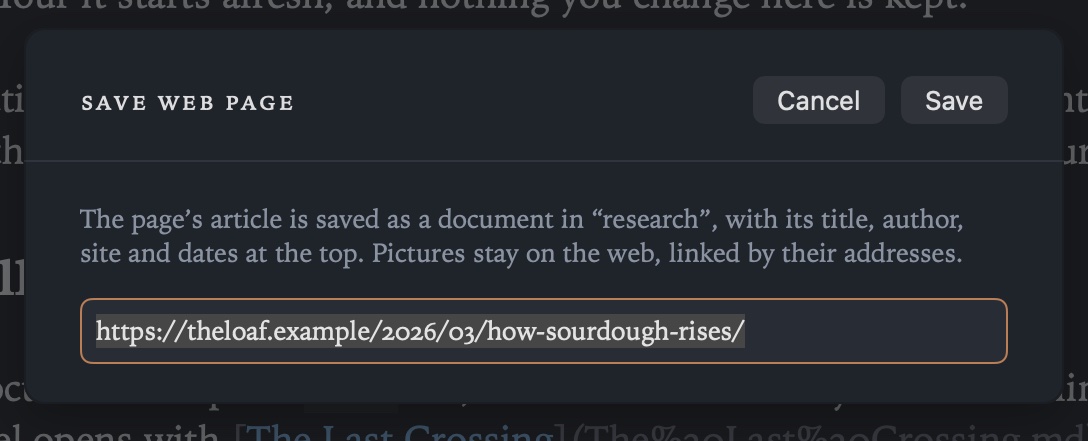
Choose File ▸ Save Web Page, paste the address and press Save. If you’ve just copied an address, it’s already filled in. The article opens as a new document, named after the page.
Grasmere keeps the writing and drops what’s around it, like menus, adverts and cookie banners. Headings, lists, quotes and tables come across as Markdown. Pictures stay on the web, linked rather than downloaded.
A few things worth knowing:
- If you’ve saved the page before, Grasmere opens the copy you already have instead of making another.
- Some pages have no article to keep, such as a home page or a sign-in form, and some can’t be reached at all. Grasmere tells you, and offers to save just the link so you can come back to it.
- With a web address on the clipboard, New Document from Clipboard (⇧⌘K) saves the page in one step.
Grasmere fetches the page the way a private browser window would, with no cookies and nobody signed in. A page behind a paywall saves only as much as it shows to anyone.
The research folder
Saved pages go in a folder called research, which Grasmere makes the first time you save something. PDFs and pictures you save from the web go there too. If your project already has a Research folder, Grasmere uses that.
What’s at the top
Each saved page starts with a few lines of front matter between --- markers. You can see and edit them in the margin, under Front Matter.
---
title: How Sourdough Rises
url: https://theloaf.example/2026/03/how-sourdough-rises/
author: Rosa Field
site: The Loaf
published: 2026-03-14
accessed: 2026-10-23
type: webpage
---
- title is the page’s title, and the document’s heading.
- url is where the page lives. Grasmere also uses it to tell whether you’ve saved the page before.
- author and published are filled in when the page says who wrote it and when.
- site is the website’s name, or its address if it doesn’t give one.
- accessed is the day you saved it. Citations ask for this.
- type: webpage marks the document as a saved page, which makes it a source you can cite.
These are the details a citation needs, so a saved page is ready to cite straight away. Type [@ in a document and pick it. You can add books and papers too, by ISBN or DOI, with File ▸ New Source, and Grasmere keeps a list of all your sources in research.md. See Citations.
From other apps
In Safari, choose Share ▸ Grasmere and pick a project. The page is saved the same way, with anything you type in the share sheet added under its title. See Quick Capture and Sharing.
In Shortcuts, the Save Web Page action takes an address, and a project if you like, and gives you back the new document. If you’ve saved that page before, you get the existing one. See Shortcuts and the Command Line.
Settings
To give the research folder another name, go to Settings ▸ General ▸ Research ▸ Folder.
Saved pages are usually other people’s writing, so they’re left out when you publish your project as a website. To include them, turn on Publish the research folder in Settings ▸ Automation. See Publishing.
Related
- Citations
- Journal
- Quick Capture and Sharing
- Privacy, for what Grasmere fetches from the web