Publishing
Your documents are plain files, so they already work anywhere. When you want something more finished, Grasmere can typeset them as a PDF, build a website or make flash cards.
Publish a folder to PDF
To turn a folder of chapters into one PDF, right-click the folder in the contents and choose Publish to PDF. You can also use the File menu, which offers Publish Project to PDF, or Publish “chapters” to PDF when you’ve highlighted a folder in the contents with the arrow keys.
Grasmere typesets the documents in the folder’s order. Each document becomes a chapter on a new page, titled by its first heading, and each folder inside becomes a part.
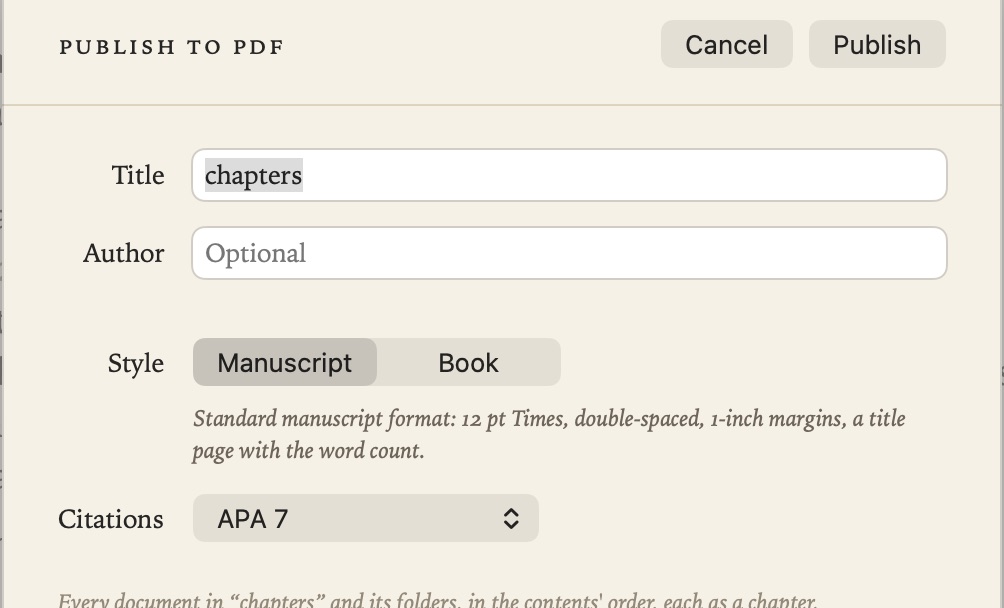
Give the PDF a title, and an author if you like, then choose a style:
- Manuscript: standard manuscript format, as publishers and agents ask for. Double-spaced 12 pt Times, one-inch margins, a title page with the word count, and the author, title and page number at the top of each page.
- Book: your theme’s typography, large chapter titles, a divider page for each part, and page numbers at the foot.
The order comes from the folder’s index.md. See The Contents. When the PDF is saved, Show in Finder takes you to it.
If you’d like to put a long piece in order and read it through first, open the folder as a manuscript. Its Export button makes the same PDF, or the whole folder as one Word document. See The Manuscript View.
Export a document as a PDF
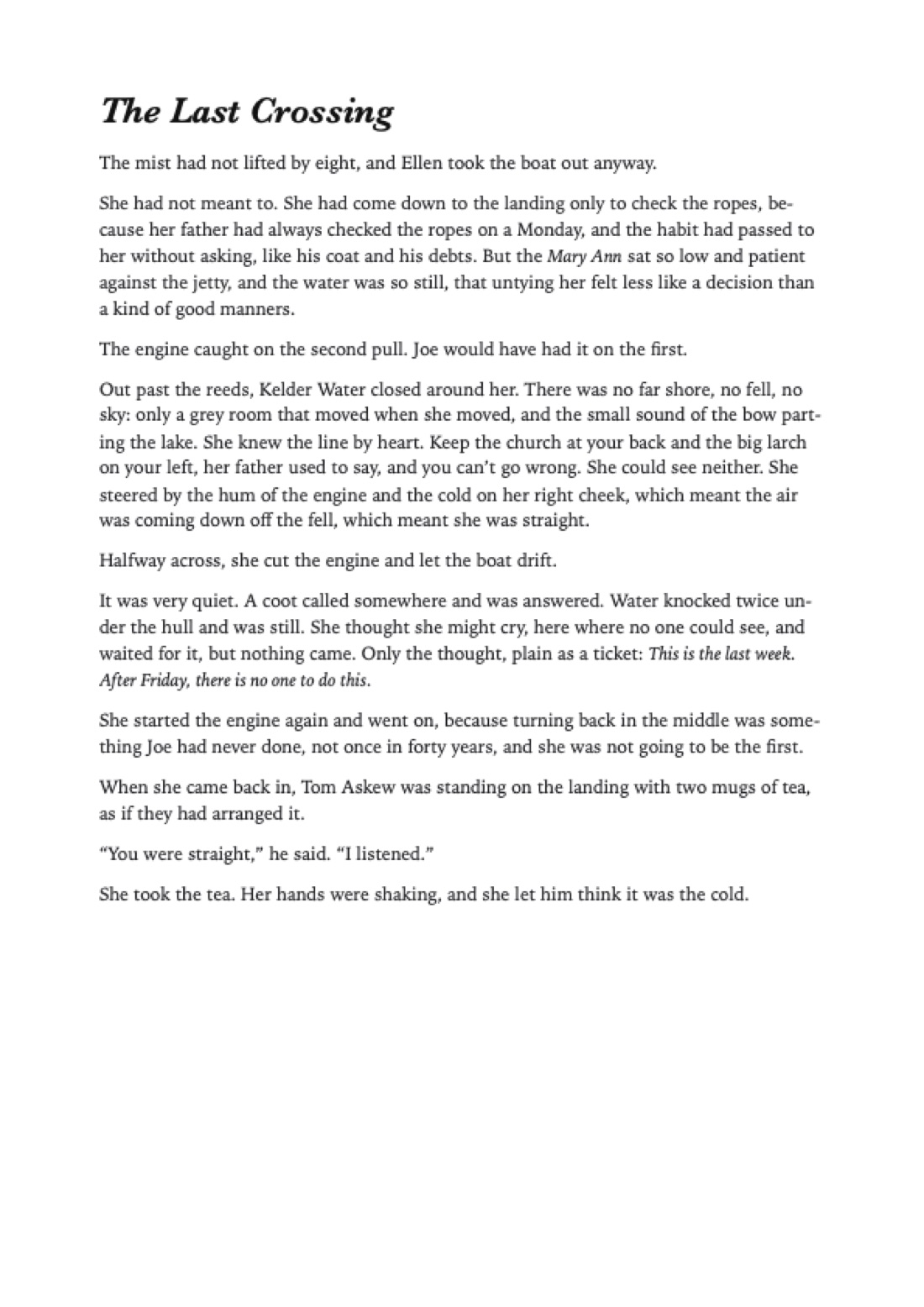
File ▸ Export as PDF (⌘P) typesets the open document on A4 or Letter pages.
Export a document as a Word document
New in 1.1.
When you need to hand something in, or send it to someone who edits in Word, choose File ▸ Export as Word Document (⇧⌘E). Grasmere saves the open document as a .docx on A4 or Letter pages, with page numbers at the foot.
It’s a proper Word document, not a picture of one. Headings use Word’s Heading 1, 2 and 3, so they fill the navigation pane and a table of contents. Lists, tables, quotations and code use Word’s own styles too, so if you change the style set in Word, the whole document follows. Pictures are embedded and web links can be clicked.
Links to other documents become plain text. A link to a heading in the same document still jumps to it.
Build a website
Project ▸ Build Website (⌥⌘B) turns your project into a website, in a _site folder inside it. Each document gets a page, with working links, its pictures, and a list of the documents that link to it.
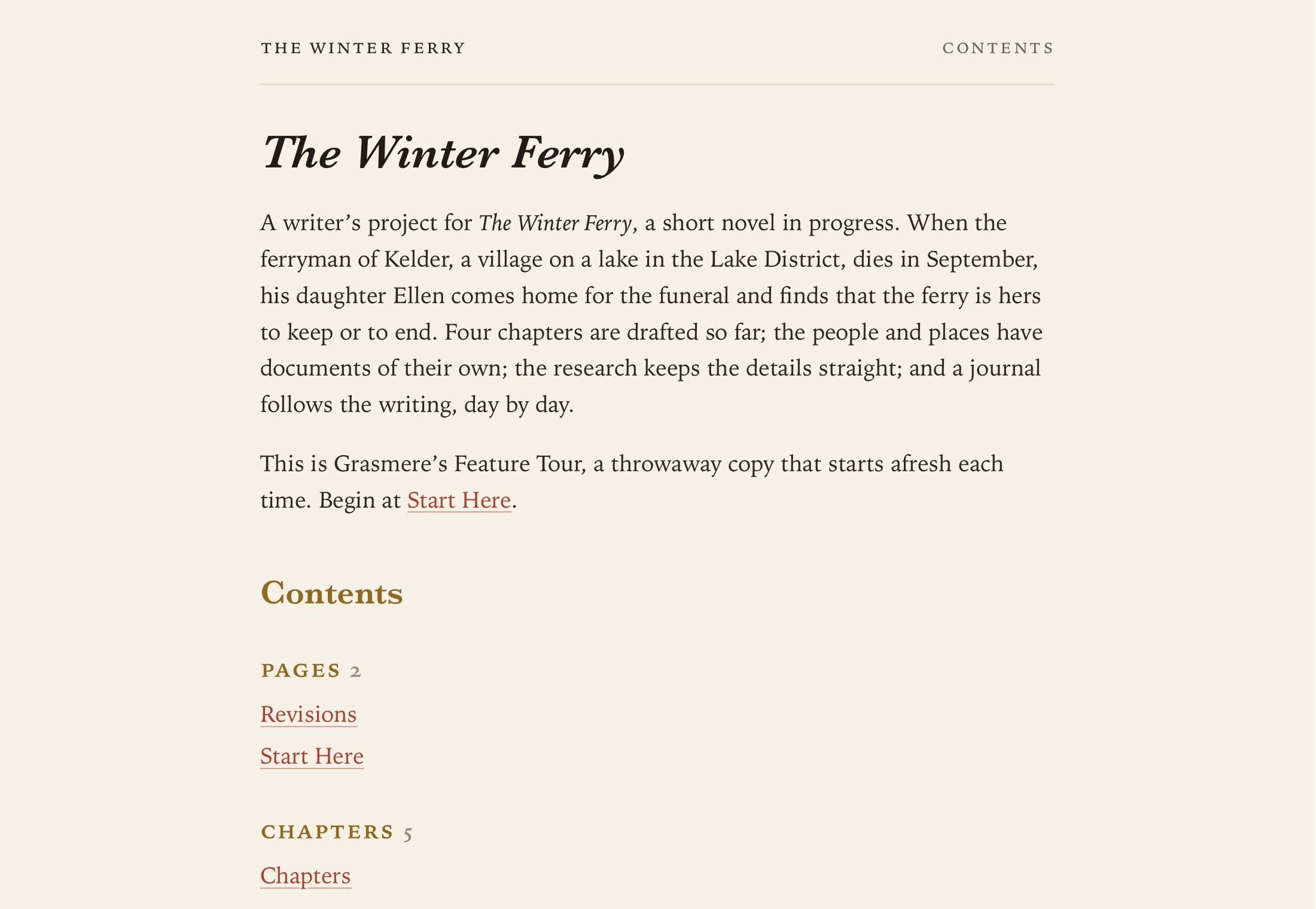
The home page shows the project’s name, the Summary section of project.md, and the contents. Pages are styled with your light and dark themes. There’s no JavaScript and nothing that tracks visitors.
A few things worth knowing:
- To leave a document out, put
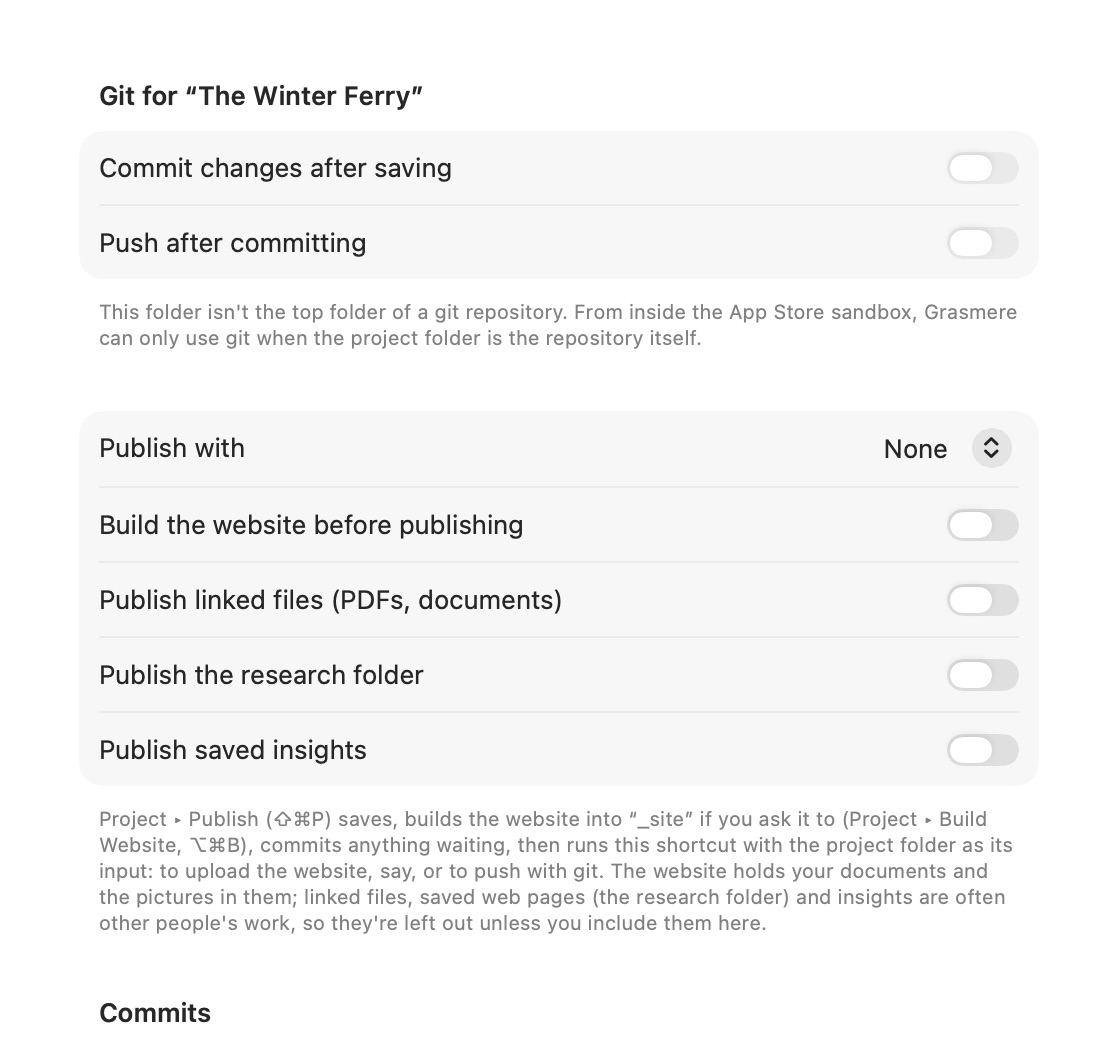
draft: trueorpublish: falsein its front matter. Links to it become plain text. - Linked files such as PDFs, saved web pages in the research folder, and saved insights are often other people’s work, so they’re left out unless you include them in Settings ▸ Automation.
- Before the first build, Grasmere shows you what will be published. After that, a rebuild only changes what has changed, and never touches files Grasmere didn’t write.
When it’s done, Open in Browser shows you the site.
Publish
Project ▸ Publish (⇧⌘P) does the whole round in one go. It saves your documents, builds the website if you’ve asked it to and commits anything waiting to git. Then it runs a Shortcut of your choosing with the project folder, to upload the site or push it, say. Choose the Shortcut in Settings ▸ Automation ▸ Publish with.
Export to Anki
Grasmere can turn documents into flash cards for Anki, with the document’s title on the front and the document on the back.
- File ▸ Export as Anki Deck exports the open document.
- Right-click a folder and choose Export Folder to Anki for every document in it.
- Pick several documents in the contents, right-click, and choose Export Documents to Anki.
If you import a later export, Anki updates the cards and keeps your reviews.
Related
- The Manuscript View
- Writing Goals
- Saving, Safety and Git, for git and Shortcuts