Saving, Safety and Git
Your documents are your own files, so Grasmere is careful with them. It saves as you go and never saves over a change made somewhere else without asking. If the app or your Mac crashes, your unsaved work is kept safe.
Saving
Grasmere saves a document a couple of seconds after you stop typing, and whenever you switch to another document or another app. “Saved” shows briefly in the bar beneath the page. This is Settings ▸ General ▸ Save automatically, which is on to begin with.

If you turn it off, documents are saved when you switch documents, close the window or quit, or when you choose File ▸ Save (⌘S). Until then, the running head marks the document edited.
Saving doesn’t clear your undo history, so ⌘Z still works afterwards.
When another app changes a document
Sometimes a document changes on disk while you’re still working on it, because of a sync service, another editor or git. If you have unsaved changes, Grasmere won’t save over the other version. The bar says the document was changed by another app, with a Review button, and you choose what to keep:
- Keep Both: your version is saved beside the other as “Name (my version).md”.
- Use the Other Version: your changes are set aside.
- Keep Mine: your version replaces the other.
If you have no unsaved changes, the document shows the new version.
After a crash
As you type, Grasmere keeps a copy of your unsaved changes on your Mac, apart from your documents. If the app or the Mac stops unexpectedly, open the document again and Grasmere offers to Restore your changes or Discard them. Once the document is saved, the copy is removed.
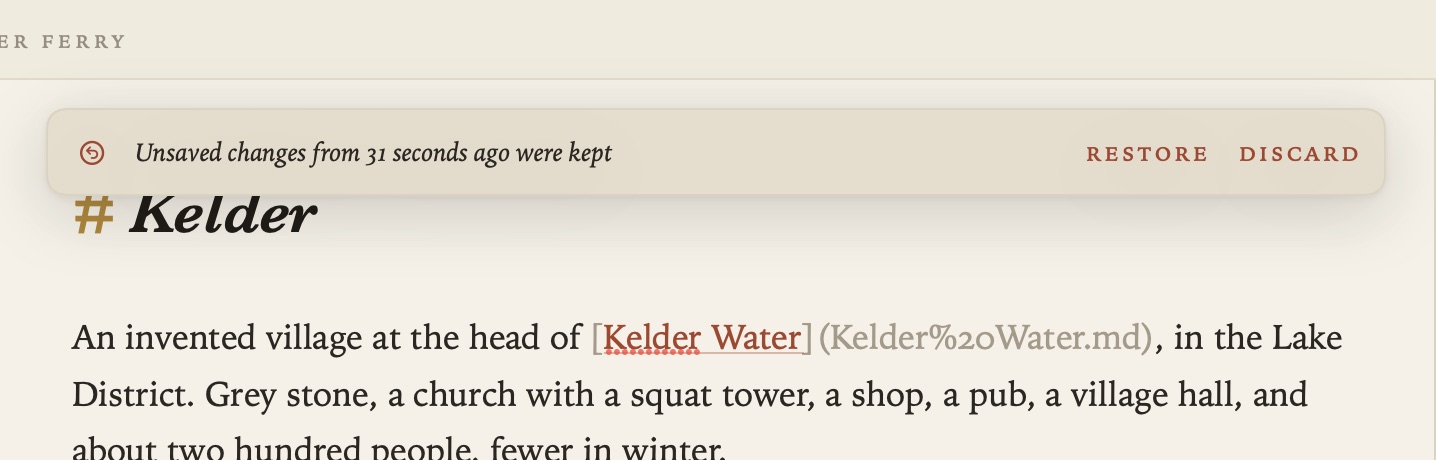
If a document can’t be saved when you quit, Grasmere asks before quitting. Either way, your changes are kept so you can recover them.
Links and undo
When you rename or move a document, Grasmere rewrites the links to it. A message says how many documents changed, with Undo. Edit ▸ Link Updates lists recent updates, and you can undo any of them. See Links and Backlinks.
Documents you delete go to the Mac’s Trash.
Git
If your project folder is a git repository, Grasmere can work with it.
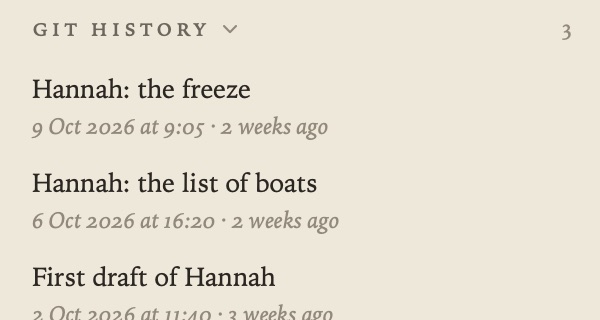
- Git History: the margin lists the commits that changed the open document, each with Restore This Version. See The Margin.
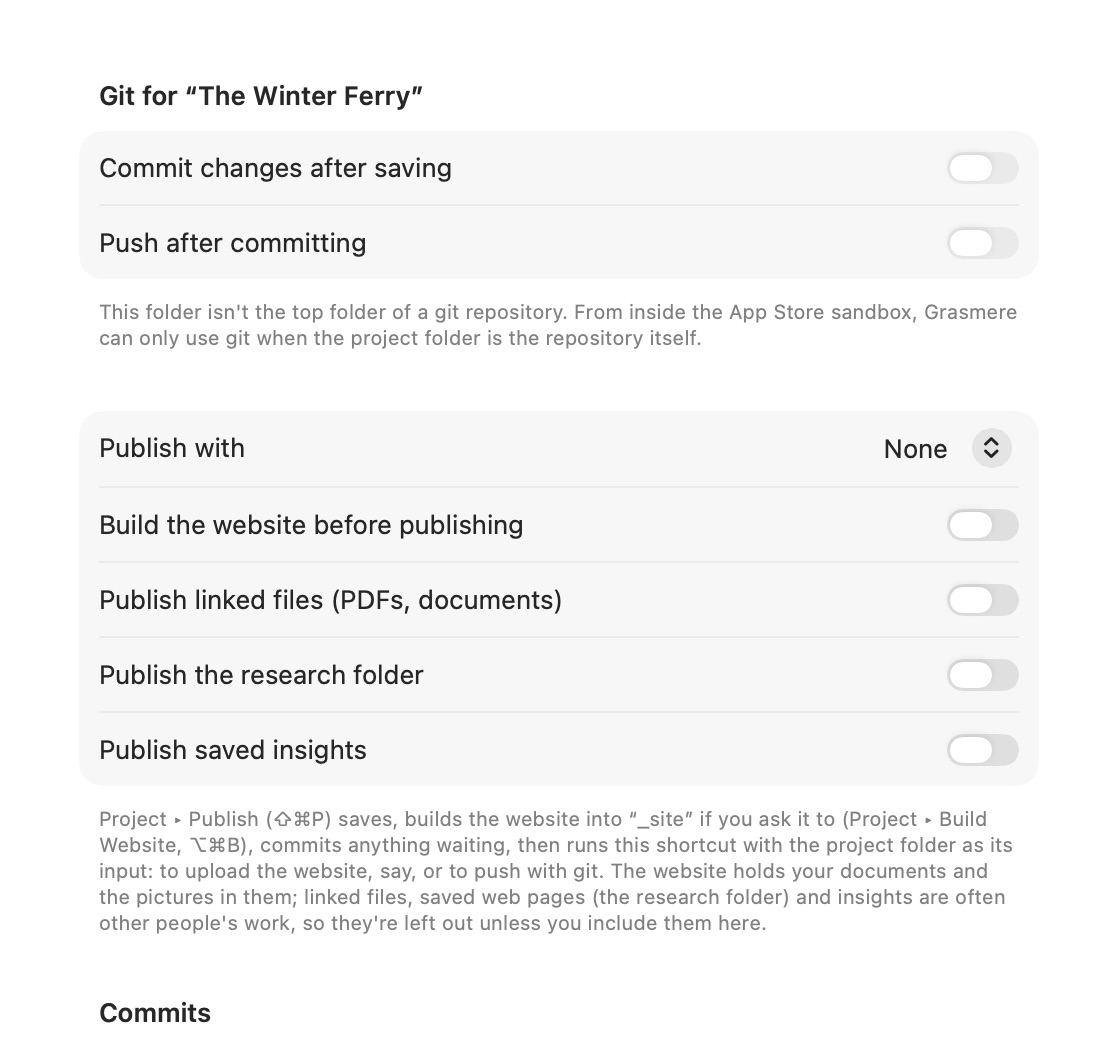
- Commit automatically: with Settings ▸ Automation ▸ Commit changes after saving on, Grasmere commits every change in the project together, two minutes after you stop saving, or when you close the window or quit. The message lists the documents that changed. Nothing is ever amended or force-pushed.
- Push automatically: Push after committing pushes to your remote, using your own git setup and the SSH keys held by ssh-agent.
A few things worth knowing:
- Committing needs git, which comes with Apple’s Command Line Tools. To install them, type
xcode-select --installin Terminal. - Grasmere can only use git when the project folder is the top folder of the repository.
- The Mac App Store’s sandbox stops Grasmere reading your
~/.gitconfig. Unless the repository sets its own name and email, give the ones to commit with in Settings ▸ Automation ▸ Commits. Commits aren’t signed. - If Grasmere can’t push, a Shortcut can. See below.
- Grasmere keeps its working files out of your commits with a few lines in your project’s
.gitignore, making the file if there isn’t one. The lines sit between two comments that mark them as Grasmere’s, and cover the hidden.reviewfolders, its temporary save files, and research.md while it’s hidden from the contents. Anything outside those lines is yours and is never touched. - project.md and index.md are always committed, because they hold the order of your folders, the summary and the citation style.
- A file that’s already committed stays committed until you remove it from git yourself.
Shortcuts
You can have a Shortcut of your own run when a document is saved, created, or renamed or moved, or when the project is opened. Set it up in Settings ▸ Automation ▸ Run a shortcut when. The Shortcut gets the document, or the project folder, as its input. Shortcuts run outside the sandbox, so a “Run Shell Script” action can do anything you can do in Terminal.
The Shortcuts app also has Grasmere’s own actions, for things like opening and making documents or checking, exporting and publishing them. Each can be run from Terminal with shortcuts run. See Shortcuts and the Command Line.
Backing up
Everything that matters is in your project folder, as ordinary files, so Time Machine, a sync service or git will all back it up. See Support.