Links and Backlinks
When one document mentions another, link them. Grasmere uses ordinary Markdown links, written relative to the document they’re in, the way GitHub and website builders read them: [Margaret](people/Margaret.md). It keeps every link correct as your documents move, and shows each document which others link to it.
Making a link
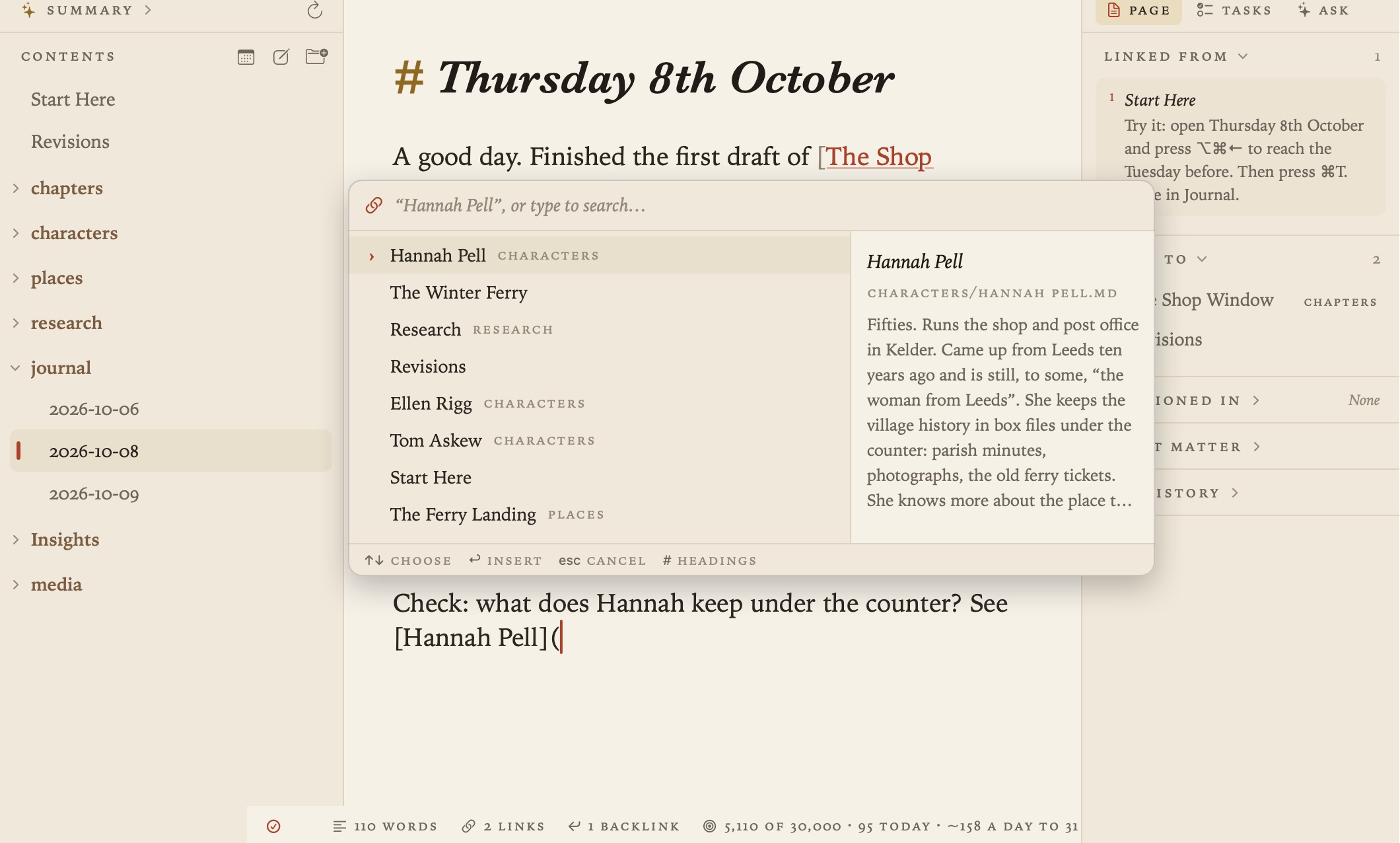
The quickest way is to type [text](. A picker opens at the cursor, with documents that match the text first and a preview of the highlighted one beside the list. Press Return to insert the link. If the document isn’t there yet, choose “New document” to make it.
Other ways to make a link:
- Select some words and press ⌘K (Edit ▸ Insert Link), then choose a document.
- Link to a heading. After a document’s name in the picker, type
#and choose one of its headings. The link ends in the heading’s id, as inThe%20Allotment.md#the-shed. - Link to a picture. The picker lists the project’s pictures as well as its documents.
- Paste a web address. It becomes a link titled with the page’s name once the title has loaded. Undo (⌘Z) gives you back the bare address.
Names with spaces are written with %20, as the web expects, so the links work in other apps and on a website too.
Links to passages
Sometimes you want to point at a particular passage rather than a whole document. Select the text, choose Edit ▸ Copy Link to Selection (⌥⌘L), and paste the link into any document. It uses the same text fragments web browsers follow (document.md#:~:text=…).
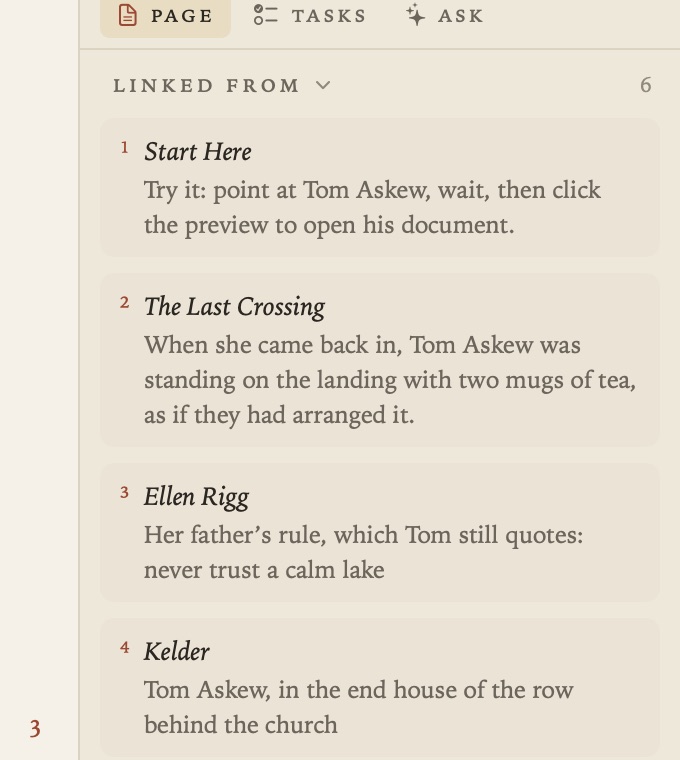
In the document being quoted, a small number in the margin marks each passage another document links to. Point at the number to see the passage highlighted. If the passage is reworded a little, Grasmere repairs the link to match.
Following links
- Rest the pointer on a link for a moment to see a preview. It shows a document’s opening, a heading’s section, a quoted passage, a picture, or a web page’s title and description. Move onto the preview and click it to open what it shows.
- ⌘-click a link to follow it straight away.
- ⌥-click a link to open it in a pane beside the page. See Focus Mode and Split View.
- Following a link to a document that doesn’t exist yet makes the document (new in 1.1). It’s titled from the link’s name and goes in the folder the link points to. So you can write the links first and fill the documents in later.
- Go ▸ Back (⌘[) and Forward (⌘]) step through the documents you’ve opened. A mouse’s side buttons and a two-finger swipe do the same.
Links stay correct
Rename or move a document or a folder, whether in Grasmere, in Finder or in a terminal, and every link to it is rewritten in every document that has one. Heading links and passage links keep pointing at the right text too.
- A message beneath the page says how many documents were updated, with Undo.
- Edit ▸ Link Updates lists recent updates, and you can undo any of them.
- A document you’re editing at that moment is never overwritten. Its links are updated in the open document instead.
- Grasmere notices changes made in other apps by itself. If you’ve just moved things in Finder and don’t want to wait, Project ▸ Update Links Now looks straight away.
Settings ▸ Links ▸ Update links automatically when documents move is on by default. Turn it off and Grasmere asks before updating links. Ask first when more than 25 documents would change sets how big a change has to be before Grasmere always asks.
Broken links
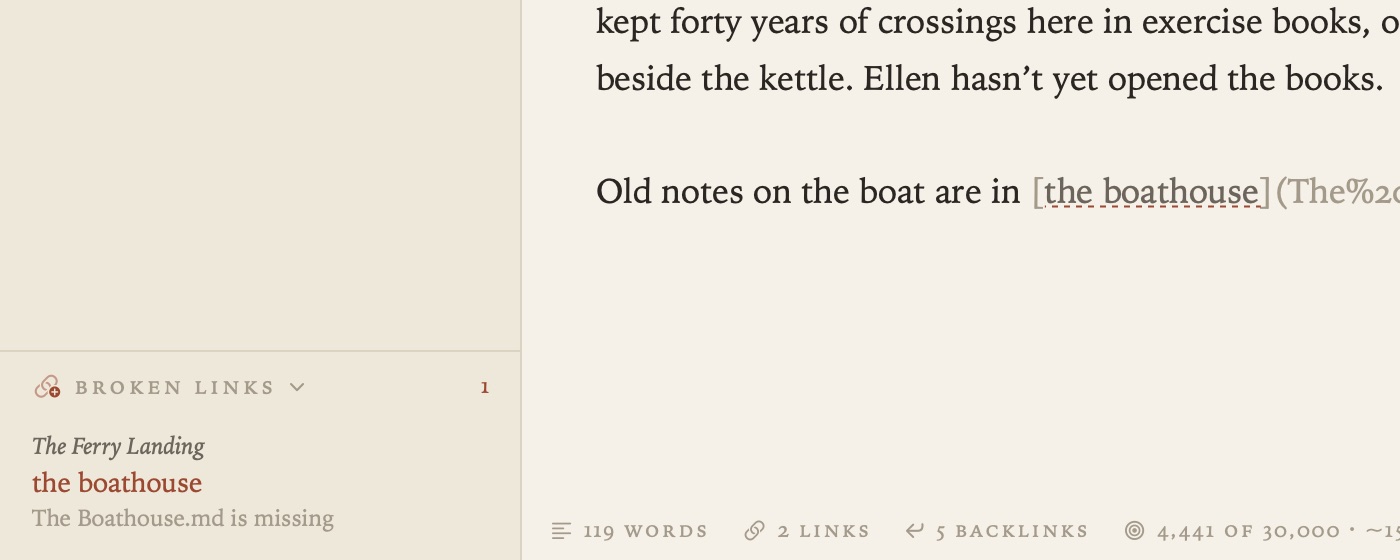
A link to a document that isn’t there is shown muted, over a dotted underline, and its preview says so. When a project has broken links, the contents list them in a section of their own. Click one to go to it.
Backlinks
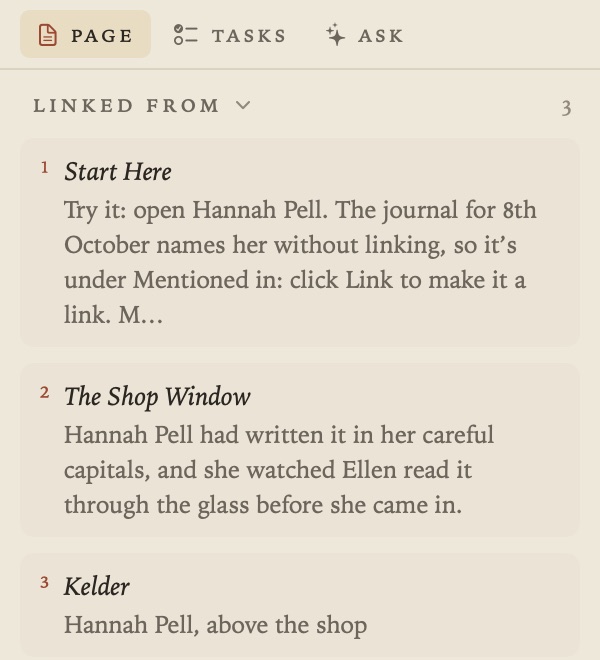
The margin on the right shows three lists for the open document. Linked from has every document that links to it, Links to has the documents it links to, and Mentioned in has documents that name it without linking. See The Margin.
Settings
In Settings ▸ Links:
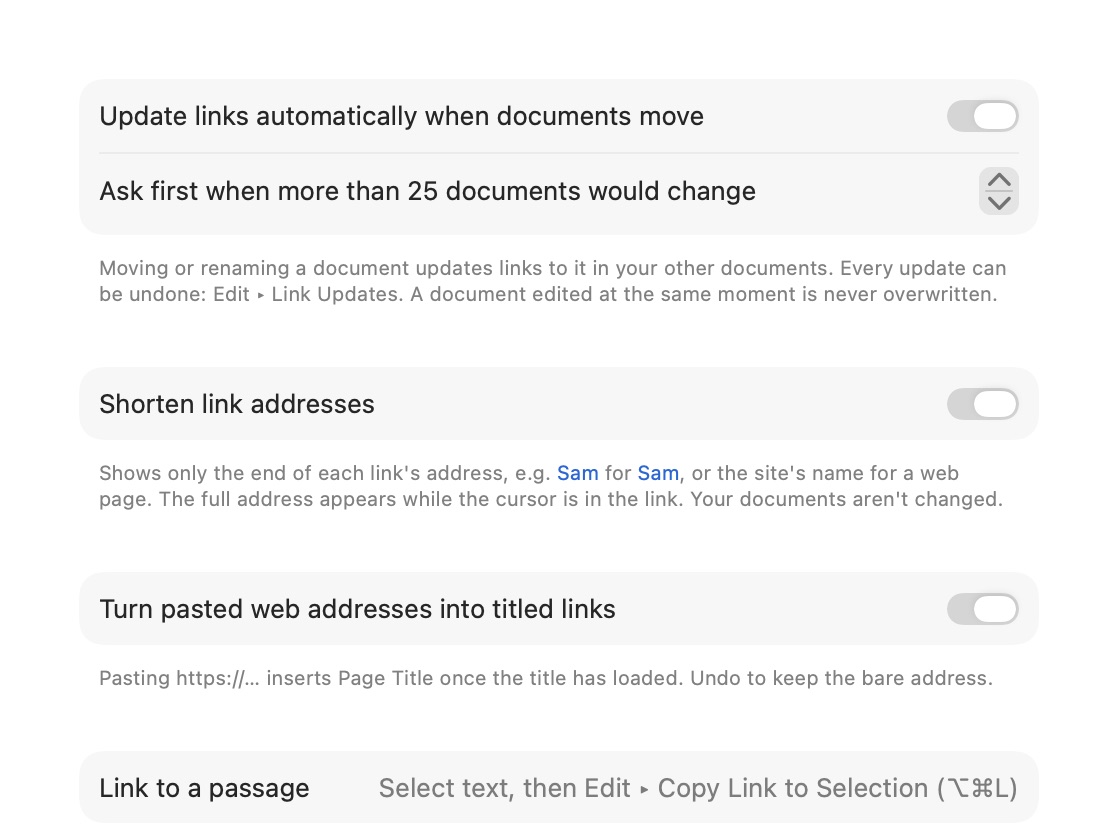
- Shorten link addresses shows only the end of each address, such as
[Sam](Sam.md)for[Sam](../../people/Sam.md). The full address appears while the cursor is in the link. Your documents aren’t changed. - Turn pasted web addresses into titled links can be turned off.
Wiki-links
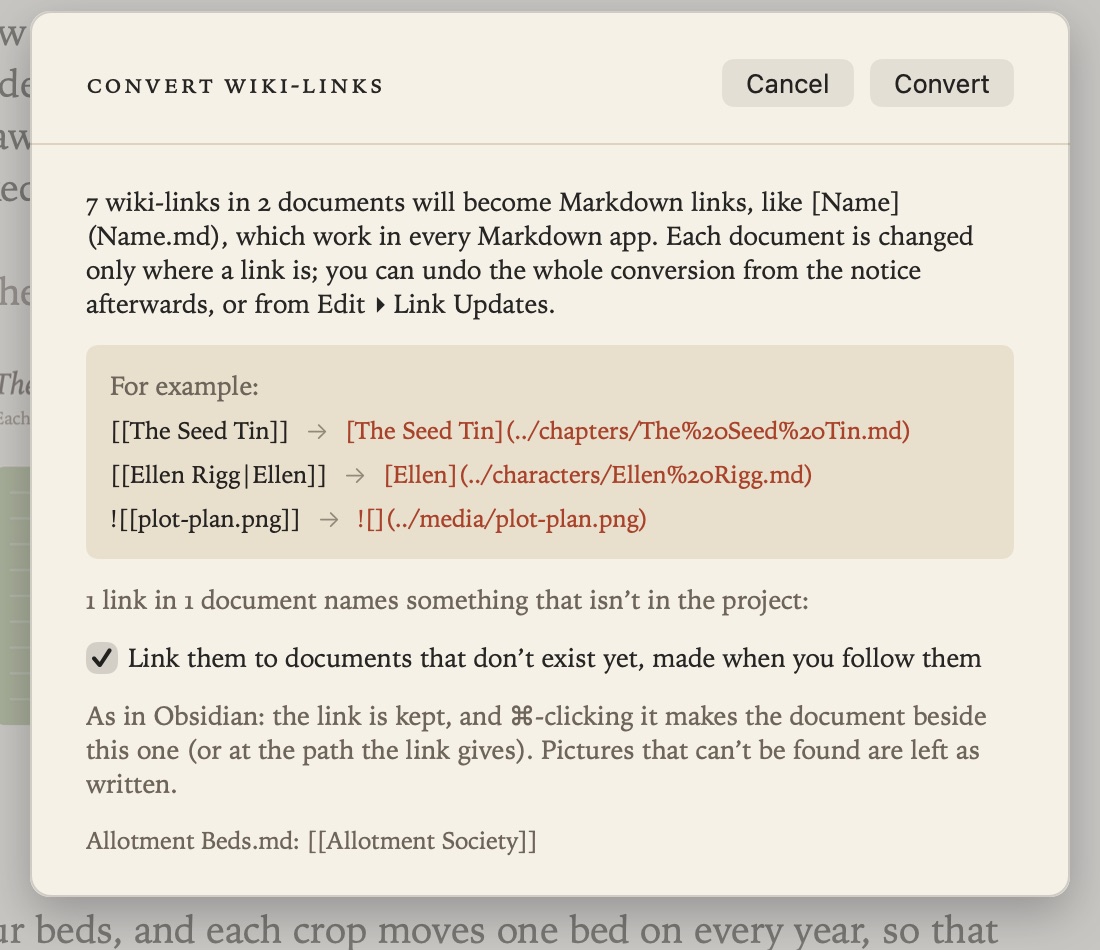
New in 1.1. If your documents came from Obsidian, they probably link with [[wiki-links]], which Grasmere doesn’t follow. Project ▸ Convert Wiki-Links rewrites every one in the project as a Markdown link, keeping aliases, headings and embedded pictures.
It also lists any that name a document that isn’t there. You can link those to new documents, made when you follow them, or leave them as written. The whole conversion can be undone. See Support if you’re bringing documents over from Obsidian.
Tips
- Grasmere doesn’t use
[[wiki-links]]. Standard links are what make your documents work everywhere else, and Convert Wiki-Links, above, turns wiki-links into standard ones. - To point at a whole folder, link to its
index.md.