Journal
When you want to write something down without deciding where it belongs, put it in today’s journal entry. What you did, what you read, what you’re turning over. Grasmere keeps one document for each day, all in one folder.
Web pages you save get a folder of their own too. See Research.
Today’s entry (⌘T)
Choose Go ▸ Today (⌘T), or click the calendar button above the contents, and today’s entry opens. If there isn’t one yet, Grasmere makes it. It’s called something like journal/2026-10-11.md, with a title like a diary’s, “Sunday 11th October”.
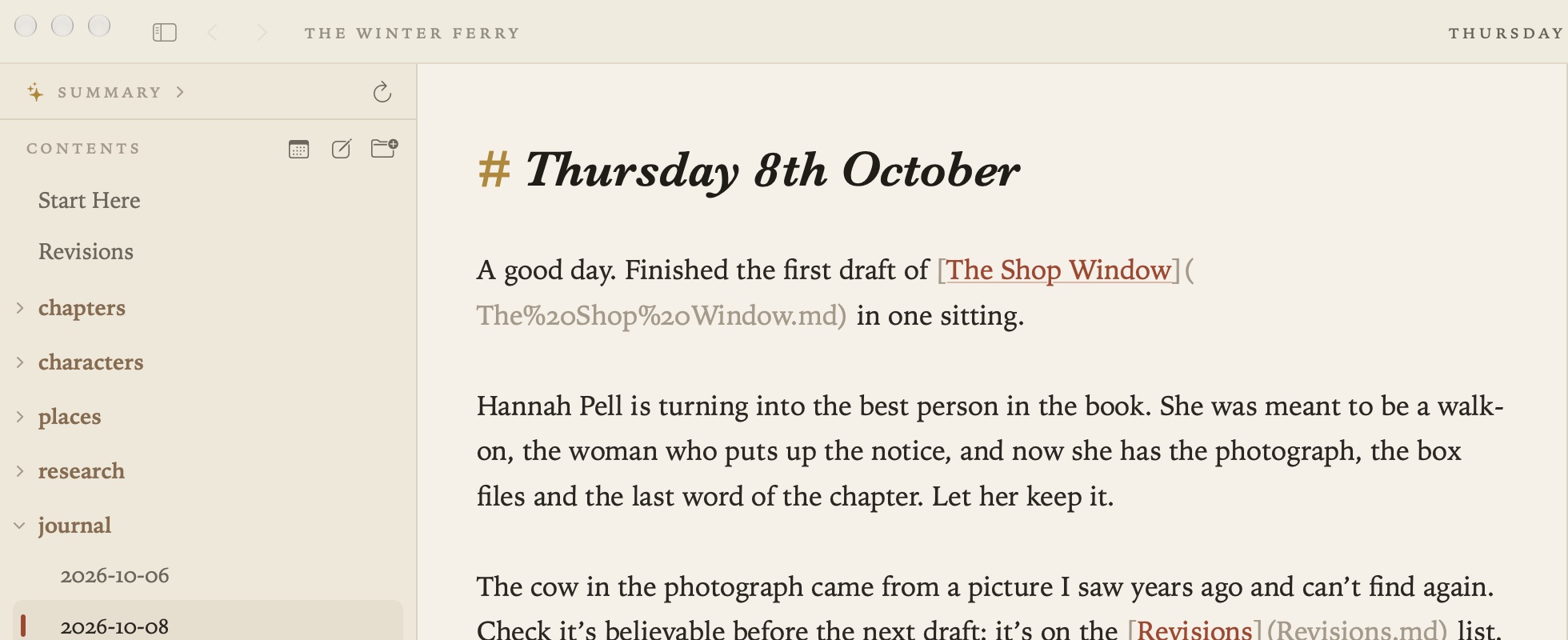
Grasmere never writes over an entry that’s already there, so ⌘T is always safe to press.
Stepping between days
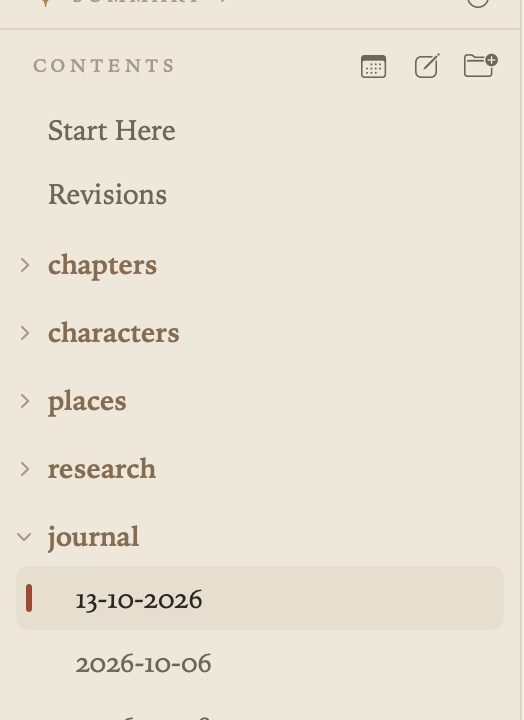
Go ▸ Previous Day (⌥⌘←) and Next Day (⌥⌘→) take you back and forward through your entries, skipping days you didn’t write. From a journal entry, they move through the folder it’s in. From any other document, they start at today in the journal folder.
Templates
If you start each day the same way, write that once as a template. It’s an ordinary document in your project, and its text begins every new entry. Give its path in Settings ▸ General ▸ Journal ▸ Template, such as templates/Daily.md.
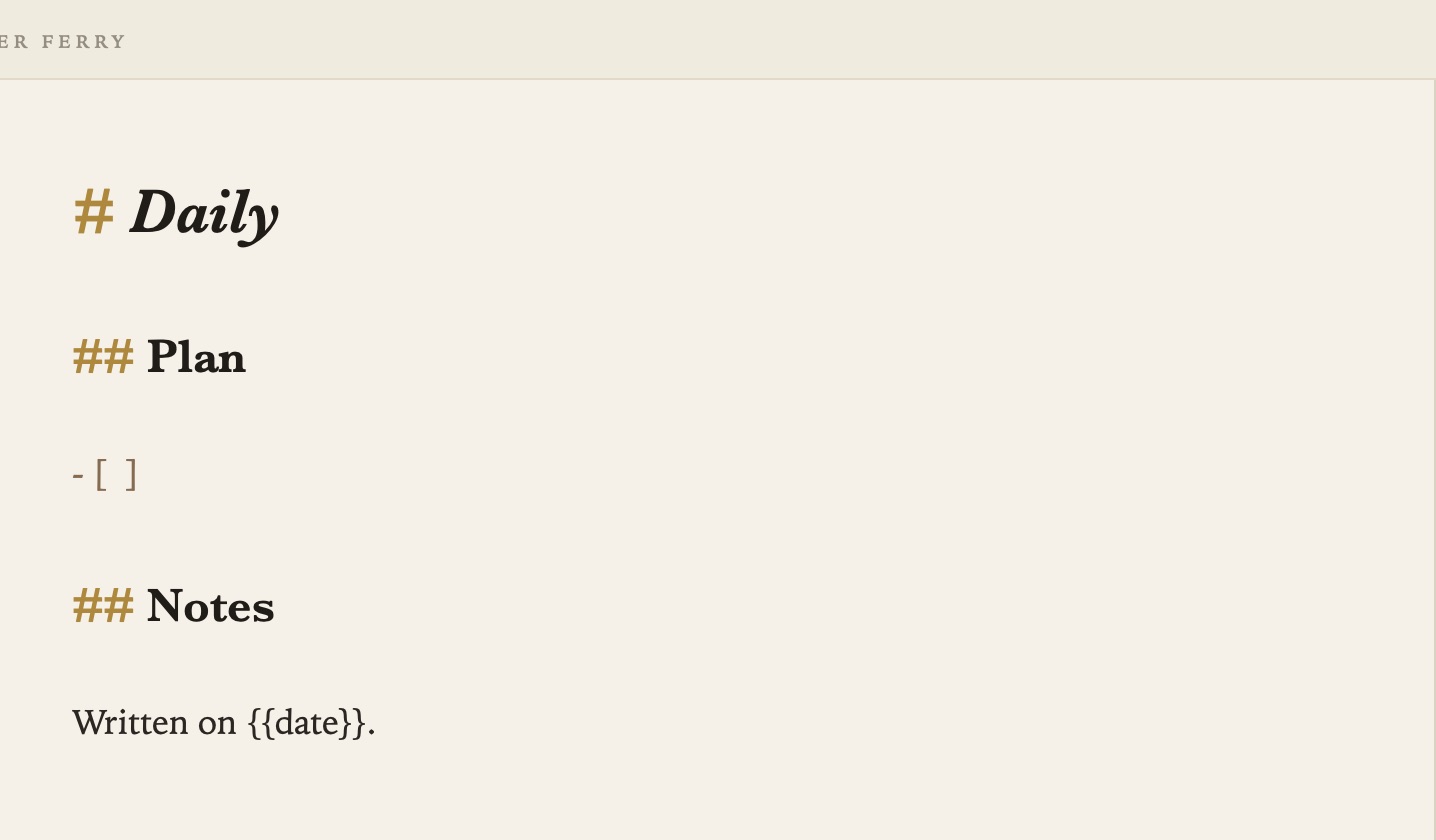
- The template’s own first heading is left out. The new entry gets the day’s title instead.
{{date}}becomes the day’s date, as2026-10-11, and{{title}}the day’s title.- Links in the template are adjusted so they still work from the journal folder.
For example, a template like this:
## Plan

- [ ]

## Notes

Written on {{date}}.
File names and titles
In Settings ▸ General ▸ Journal:
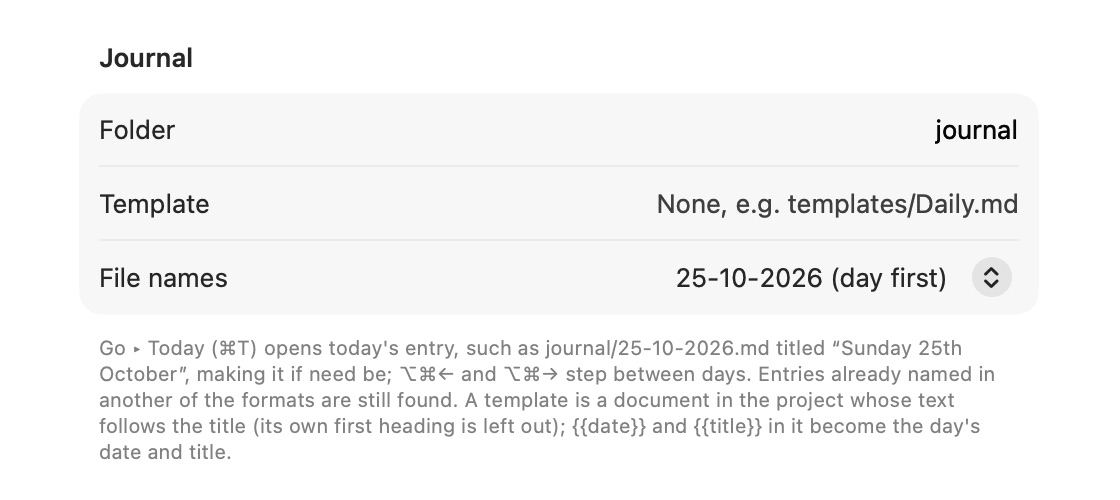
- Folder sets where journal entries go (
journalby default). - File names chooses how new entries are named. Year first,
2026-10-11, is the default and sorts by date everywhere. Day first (11-10-2026) and month first (10-11-2026) are there for journals brought from another app.
Grasmere finds a day’s entry under any of the three names, so changing the setting never makes a second entry for the same day.
Settings ▸ General ▸ Date order sets how new entries’ titles are written, such as “Friday 9th October” or “Friday, October 9”. You can choose Automatic, Day first, Month first or Year first. Automatic follows your Mac’s region. Entries you already have keep their titles.
Quick capture
To add a line to today’s entry while you’re in another app, press ⌃⌥⌘N or click the book in the menu bar. You don’t have to switch to Grasmere. See Quick Capture and Sharing.

Related
- Tasks and Due Dates
- Support, for bringing journal entries from Obsidian