Tasks and Due Dates
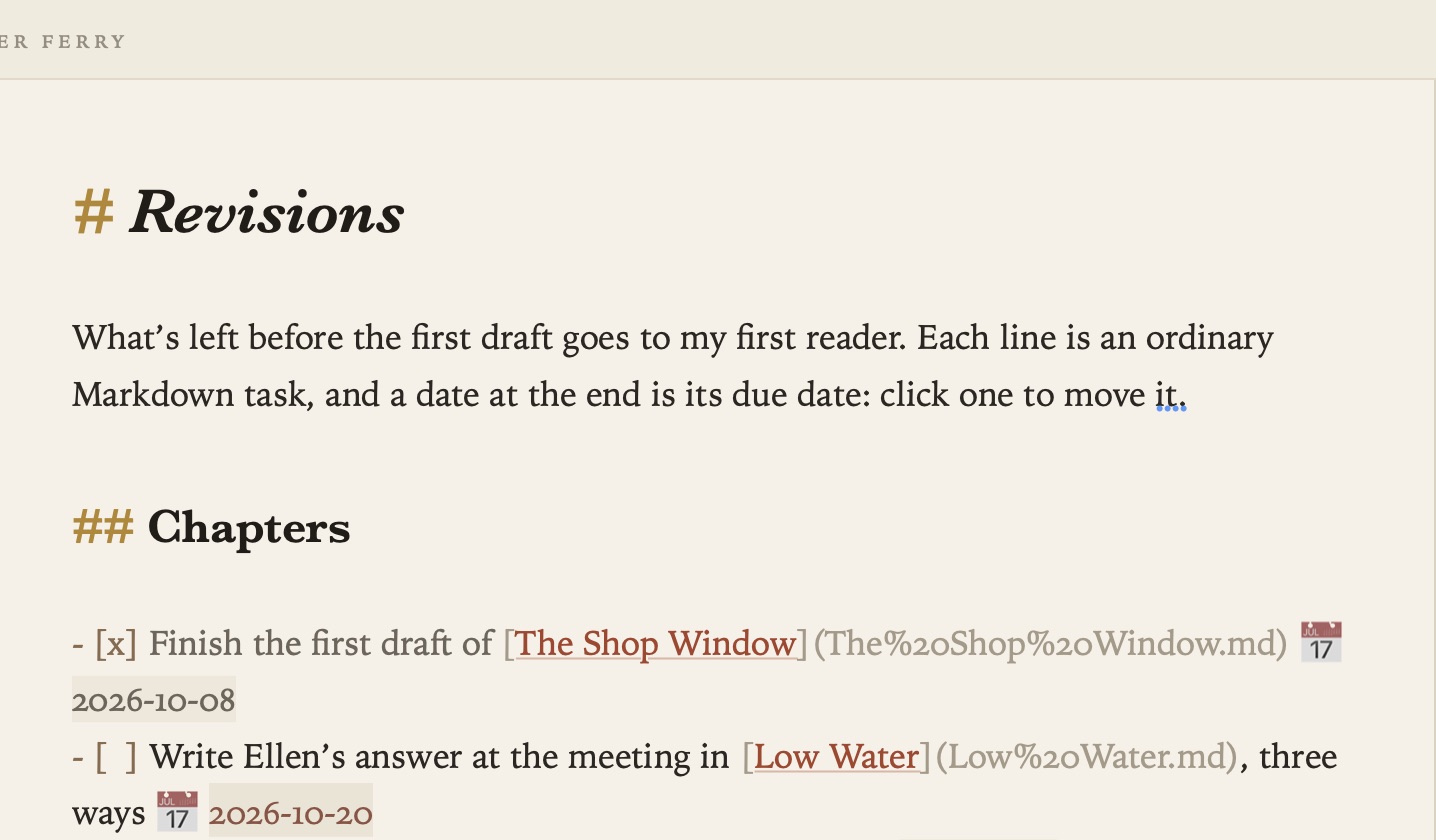
Write a task as a Markdown checkbox in any document, and Grasmere gathers it into one list with all the others. Put a date at the end and it has a due date.
Writing tasks
- [ ] Sow green manure on the potato bed
- [x] Lift the potatoes
- Click a box to tick or untick it. The cursor and the page stay where they are.
- Format ▸ Tick or Untick Task (⌘↩) does the same for the line you’re on.
- Tasks can be nested, like any list.
Due dates
Put a date at the end of a task, in either of these ways:
- [ ] Felt the shed roof 📅 2026-10-17
- [ ] Order a trailer load due: 2026-10-14
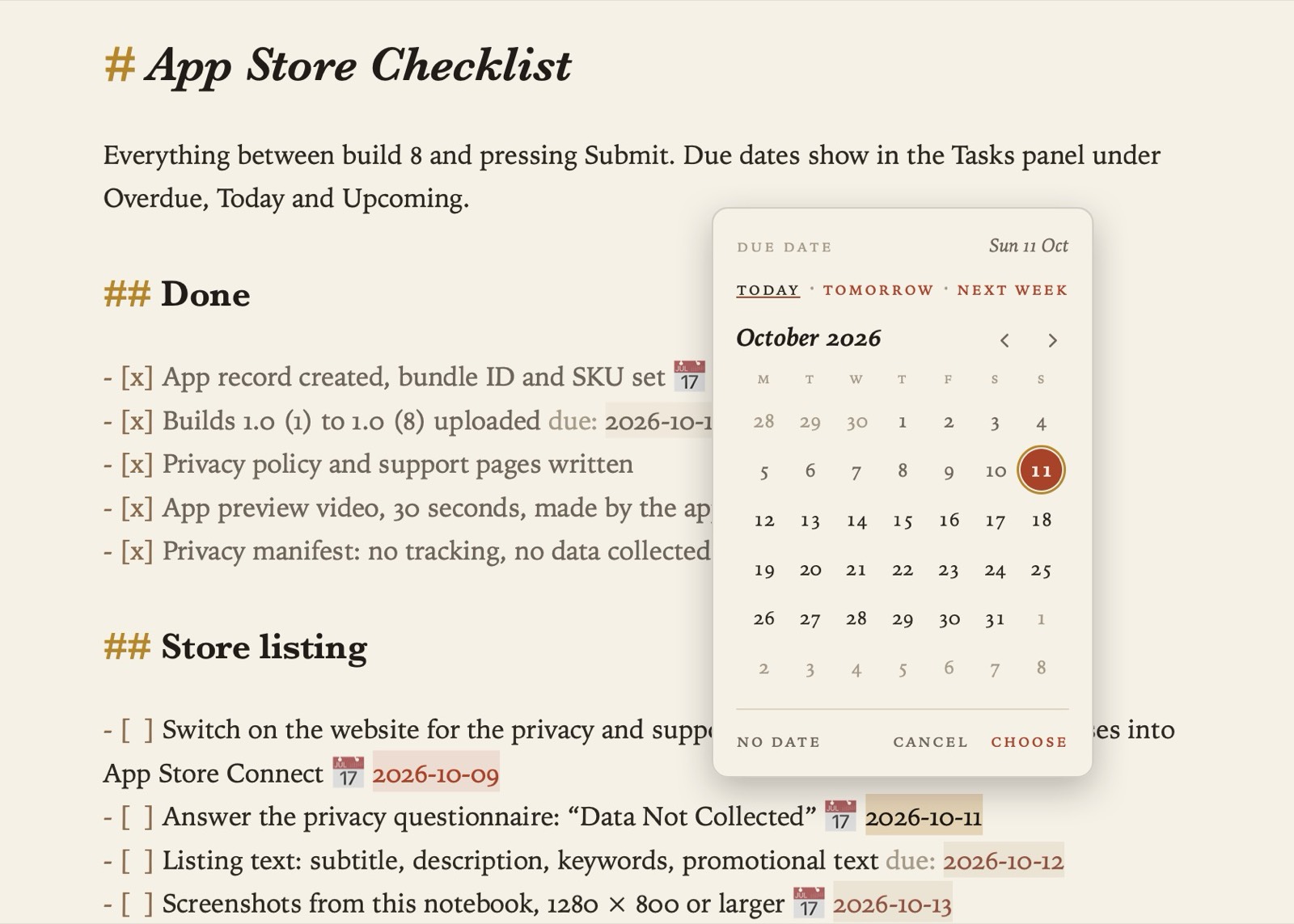
The date shows as a chip. Today’s is highlighted, and on an open task a date that has passed turns a warning colour.
Click a date to pick another day from a calendar. Today, Tomorrow and Next week are a click away, and the arrow keys and Return work too. No Date takes the date off. Only the date changes, and the document keeps it as plain text with whichever of 📅 or due: you used.
To give a task a date, right-click it and choose Set Due Date, or use Format ▸ Due Date.
Every task in one place (⇧⌘T)
Choose Go ▸ Tasks (⇧⌘T) to see every task in the project in the margin.
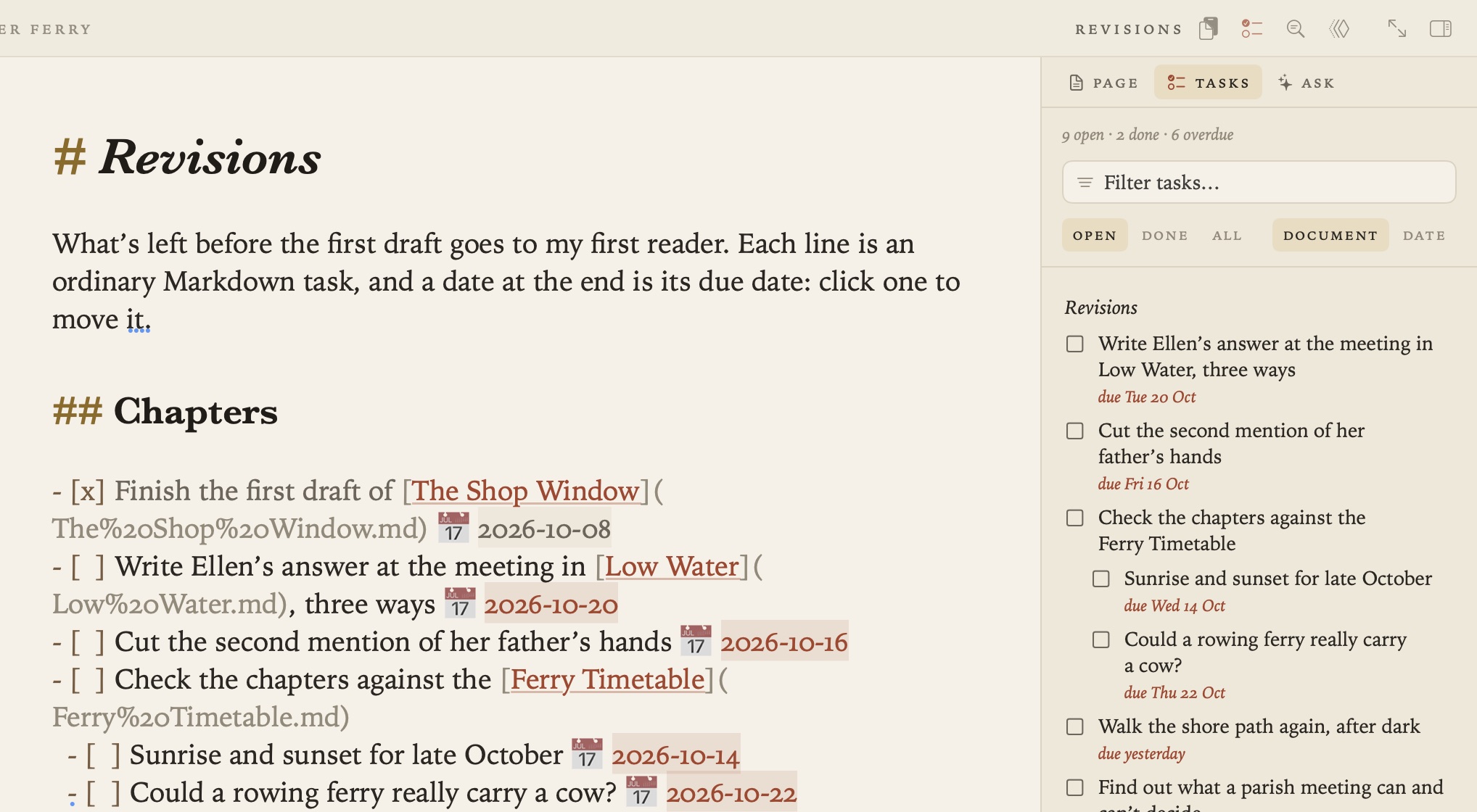
- Document groups them under the documents they’re in. Date groups them under Overdue, Today and Upcoming.
- Open, Done and All choose which tasks to show, and the filter box narrows them by their words.
- Tick a task here and it’s ticked in its document. Click a due date to change it.
- Click a task to open its document at that line, or ⌥-click to open it beside the page.
Tips
- The 📅 form is the one the Obsidian Tasks plugin uses, so tasks you bring over from Obsidian keep their dates.
- The Tasks list shows dates in the order set in Settings ▸ General ▸ Date order. In your documents they always stay year first, so they sort the same everywhere.