Find and Search
You can look for words in the document you’re reading, search every document in the project, or open a document by its name.
Find in a document (⌘F)
Choose Edit ▸ Find ▸ Find (⌘F) and a small find box opens at the top right of the page. As you type, every match is tinted and the box counts them (“3 of 12”). Capitals and accents don’t matter.
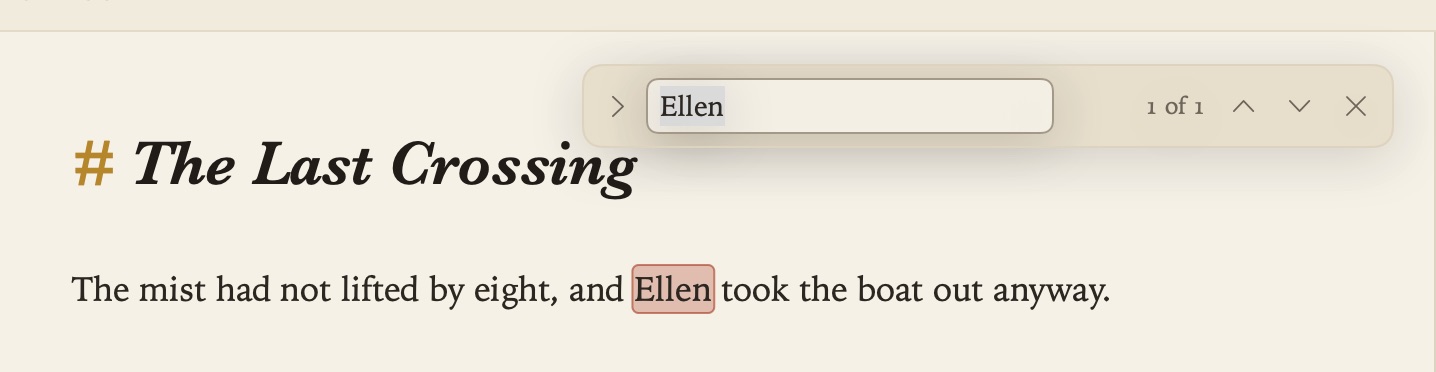
- Return or ⌘G goes to the next match, and ⇧Return or ⇧⌘G to the previous one. If a match is inside a folded section or a table, it’s opened up on the way.
- ⌘E (Use Selection for Find) searches for the words you’ve selected.
- esc closes the box and selects the match you were on.
- ⌥⌘F (Find and Replace), or the arrow at the left of the box, adds a Replace field. Replace All is a single step for Undo.
The pane in split view has a find box of its own too.
Search all documents (⇧⌘F)
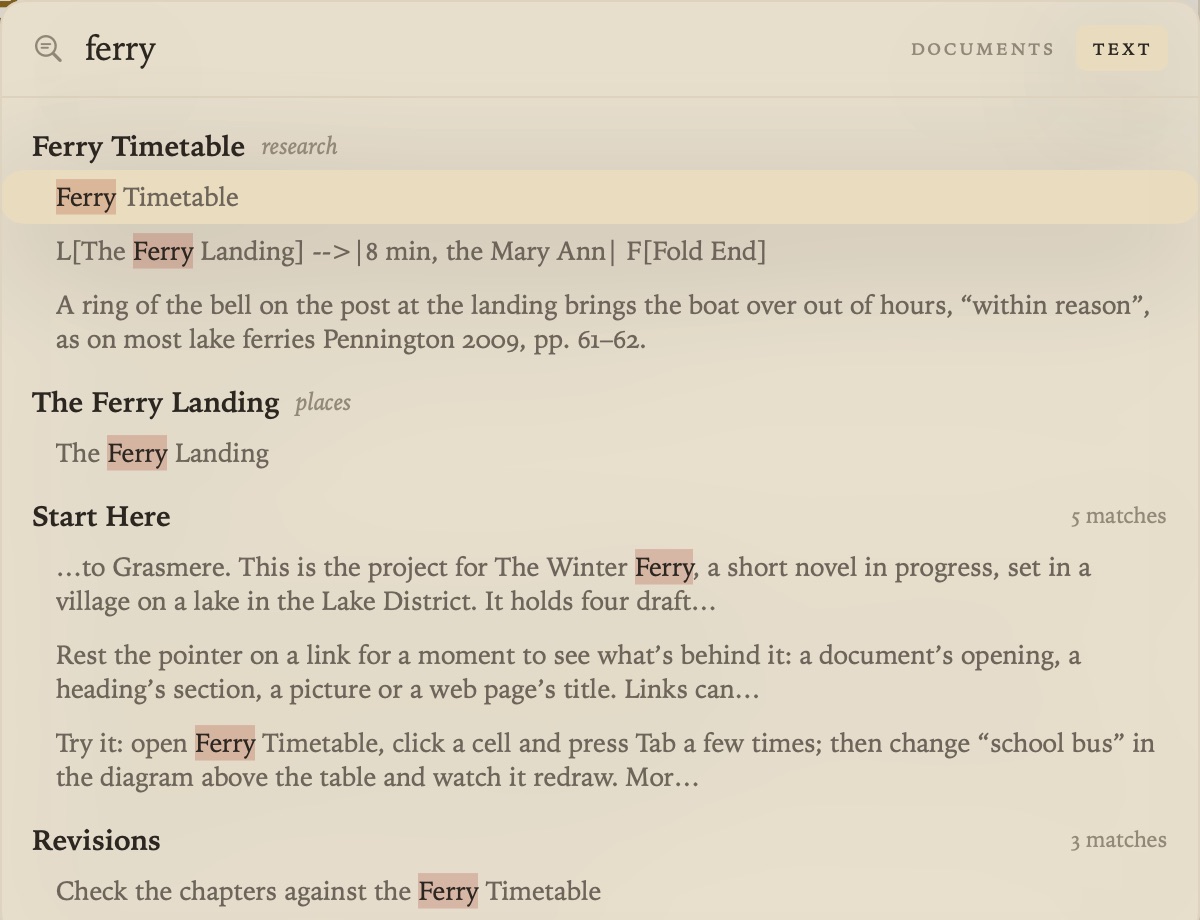
Go ▸ Search All Documents (⇧⌘F) looks through the text of every document in the project and shows each line that matches. Choose a result to open its document, or ⌥-click one to open it beside the page.
Open Quickly (⌘O)
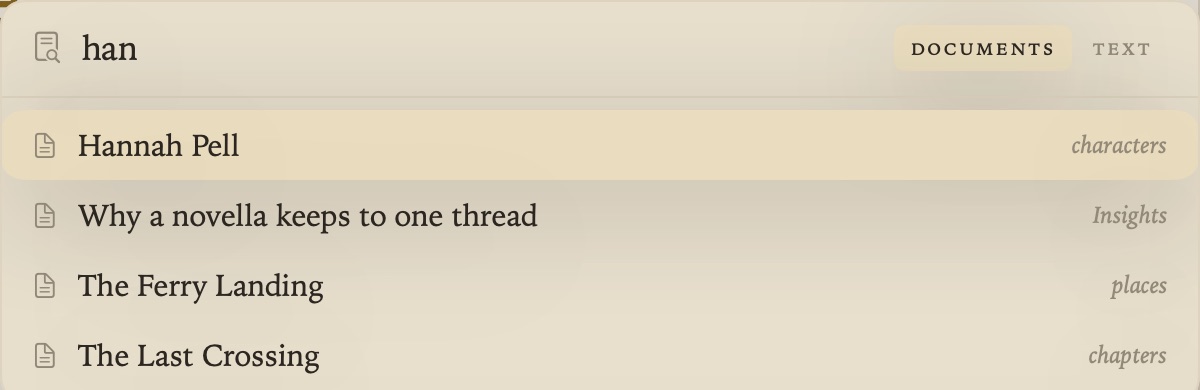
When you know which document you want, Go ▸ Open Quickly (⌘O) opens it by name. Type part of its title and press Return. Tab switches between Open Quickly and Search All Documents, so you can start with one and change your mind.
Going back
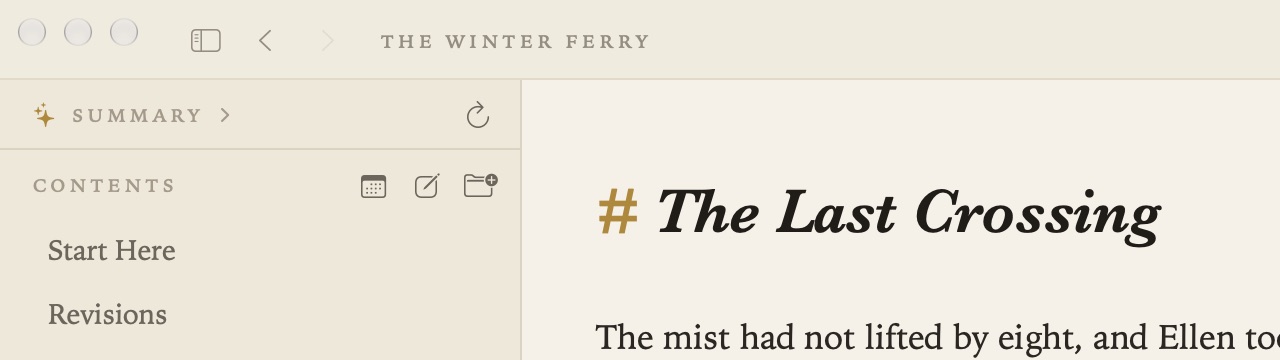
Go ▸ Back (⌘[) and Forward (⌘]) step through the documents you’ve opened, as in a browser. The side buttons on a mouse and a two-finger swipe on the trackpad do the same.
Other ways in
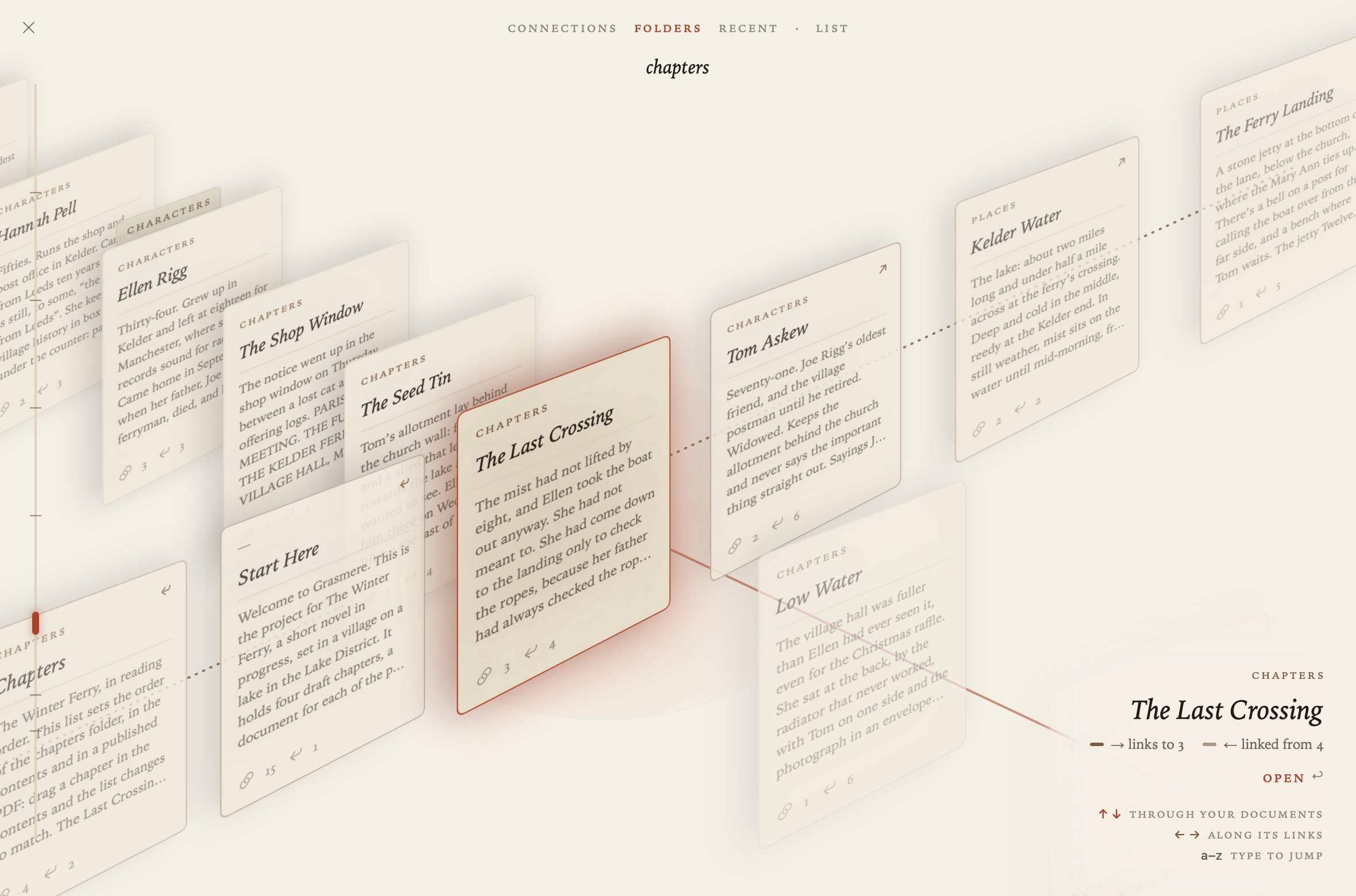
- The Index (⇧⌘L) shows every document as a card, and how they connect.
- The Margin lists the documents that link to the open one.
- Go ▸ Tasks (⇧⌘T) gathers every task. See Tasks and Due Dates.
- Project ▸ Ask Your Documents (⇧⌘A) answers a question from your documents. See Ask Your Documents and AI.
Folders you’ve chosen in Project ▸ Ignored Folders are left out of every search.