Ask Your Documents and AI
Grasmere has a few tools that use a language model to help you think about what you’ve written. You can ignore them entirely. Nothing is sent anywhere until you ask.
Ask Your Documents (⇧⌘A)
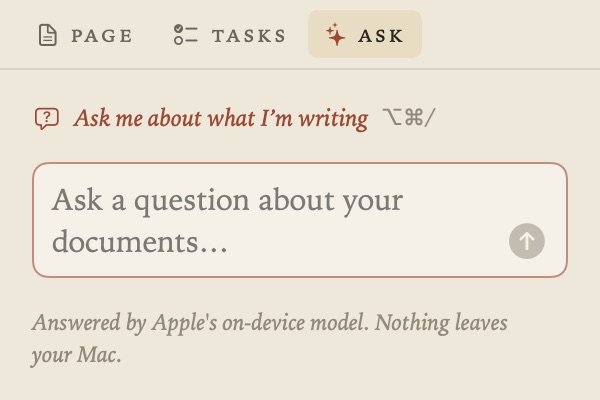
When you want to know what your own documents say about something, choose Project ▸ Ask Your Documents (⇧⌘A). The Ask tab opens in the margin. Type a question, and the answer is written from your documents alone, with numbered citations. Click a citation to open the document at the passage it came from.
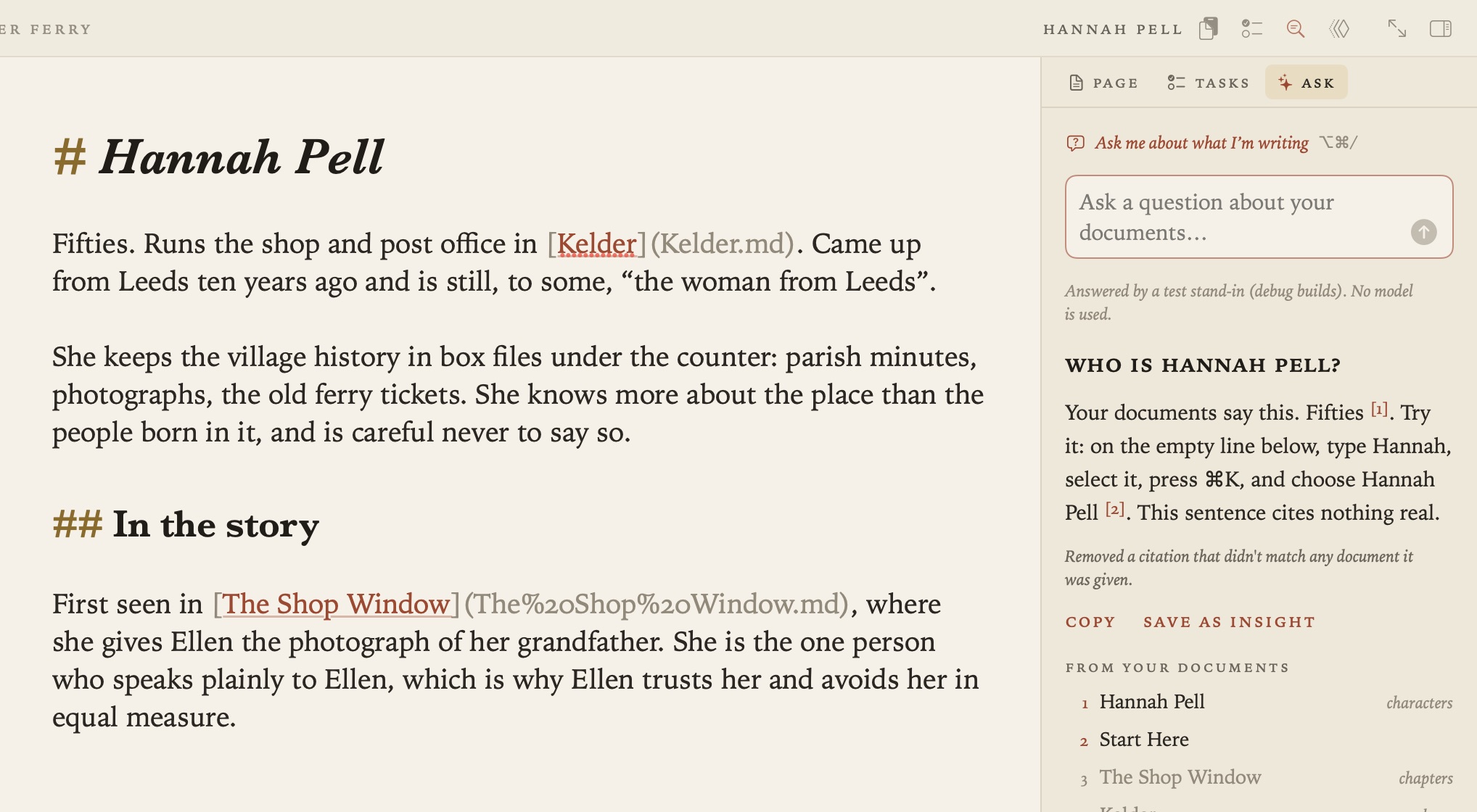
- Copy copies the answer, with its citations as links.
- Save as Insight saves it as a document in your insights folder, titled with the question. The citations become links, and the front matter says
confidence: unverifieduntil you’ve checked it. - Your questions are listed under Asked earlier until you close the window. They aren’t saved.
Brainstorm
New in 1.1. When you’re starting a piece and want to work out what you think, File ▸ Brainstorm starts the document the way a good tutor would, with questions. Before 1.3 it was called New Document with Questions.
Say what the document is about. A title, a claim, a question or a few lines will do. Then choose what kind of piece it is and how many questions you want. The kinds are an essay, an argument, a research document, a decision, a runbook, a story scene, a reflection, or just questions. The model writes Socratic questions for it, the kind that make you say what you mean, what you’re assuming and what your evidence is, what someone who disagrees would say, and what follows.
New in 1.2: a runbook, say how to deploy something, what to do when an alarm fires or how to onboard someone, gets different questions. They’re the ones a runbook has to answer, in the order its reader needs them. What it’s for and when, what must be true first, the steps, how you know it worked, what to do if it didn’t, and who to tell. The document starts a checklist under the first question and a numbered list under the steps.
Edit or remove any of the questions, then choose Make Document.
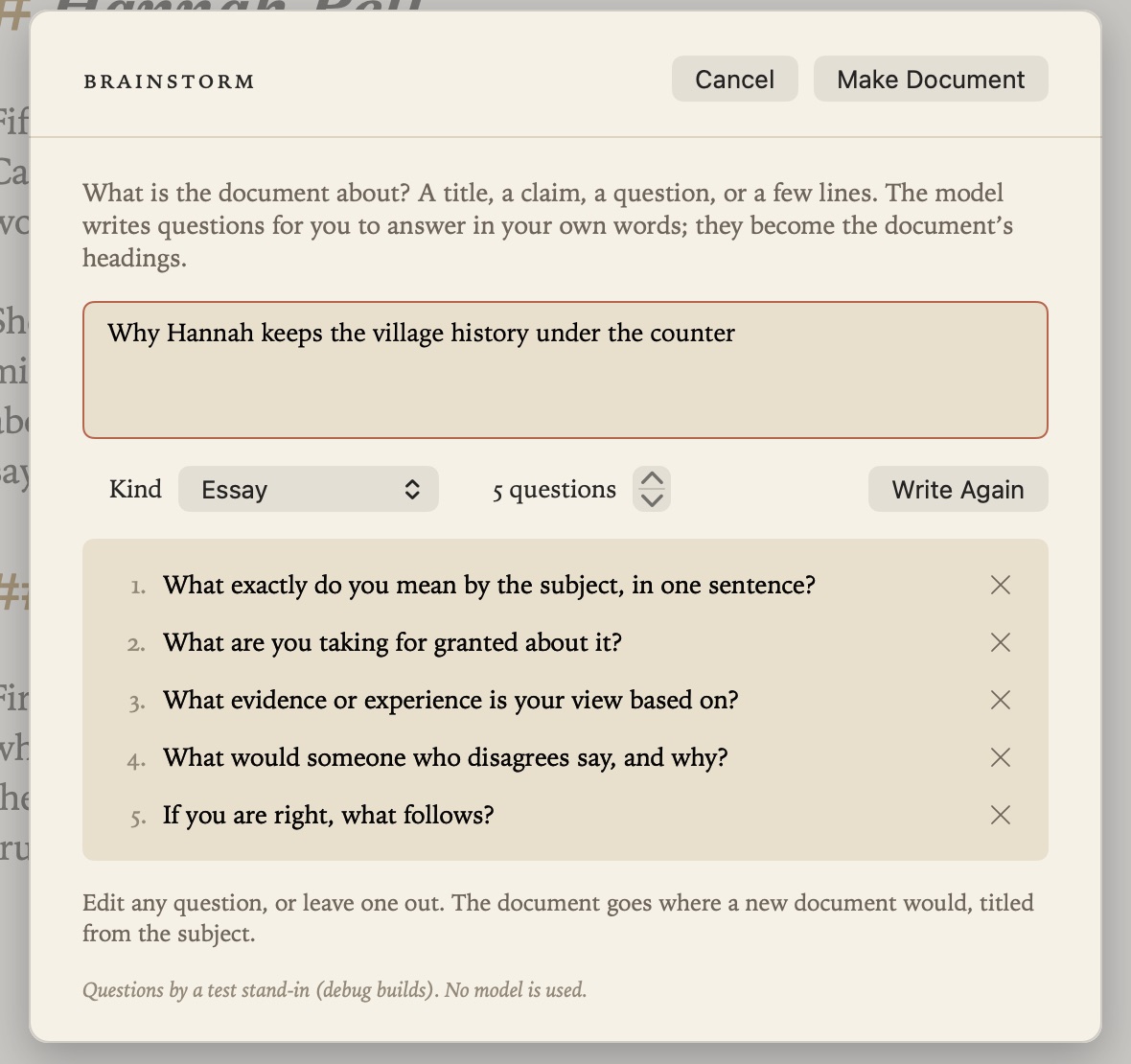
The document has the questions as its headings and nothing else. The writing beneath them is yours. It goes where a new document would, titled from the subject, with the cursor under the first question. With no project open, Grasmere asks where to save it.
The model is the one in Settings ▸ AI, which is on your Mac by default. With Claude or ChatGPT, only the subject is sent.
Ask a Follow-up Question (⌥⌘/)
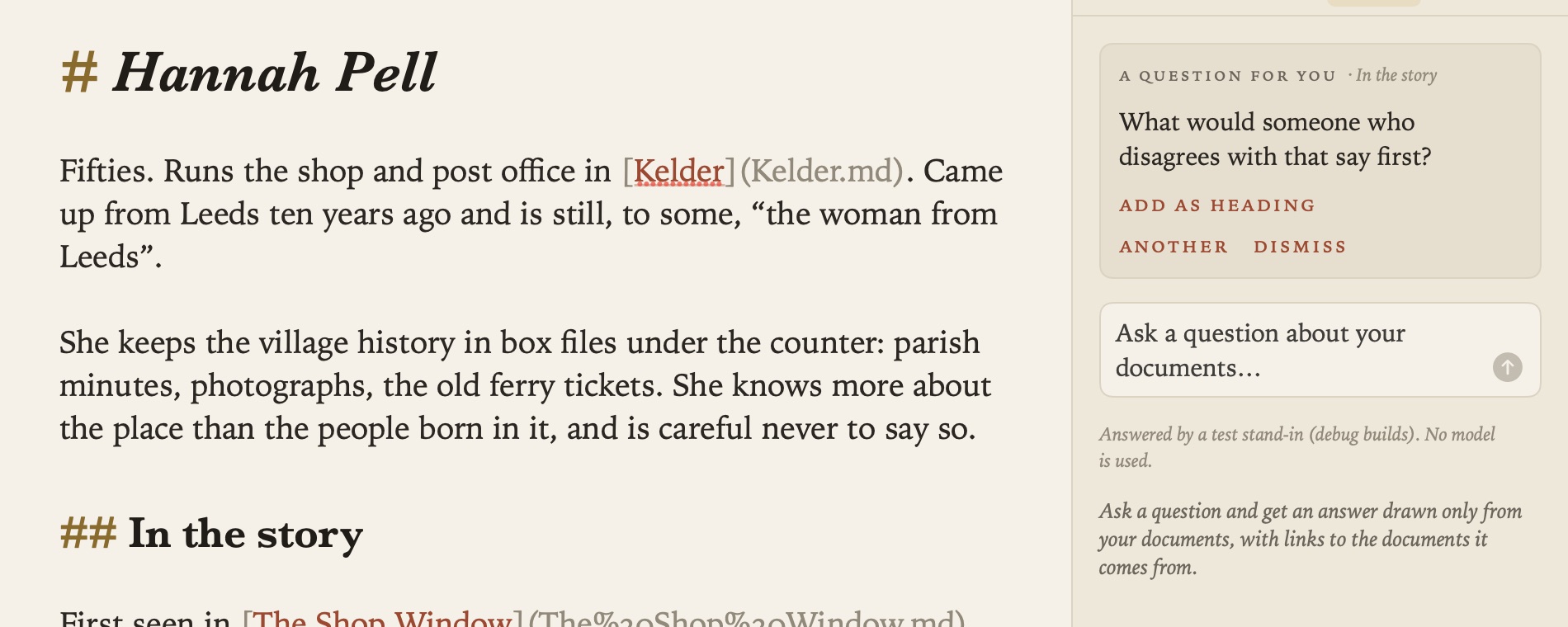
New in 1.1. When you’ve written a bit under a heading and want a nudge, choose Edit ▸ Ask a Follow-up Question (⌥⌘/), or use the line at the top of the Ask tab. The model reads what you’ve written in that section and asks one question back, the one a good tutor would ask after reading your paragraph.
The question appears in the margin, not the document.
- Add as heading puts it after the section as a
##heading, with the cursor beneath for your answer. - Another asks something else.
- Dismiss forgets it.
It never suggests wording or answers for you, and it only speaks when you ask. With Claude or ChatGPT, the document’s title, the heading and the passage are sent.
Generate Summary
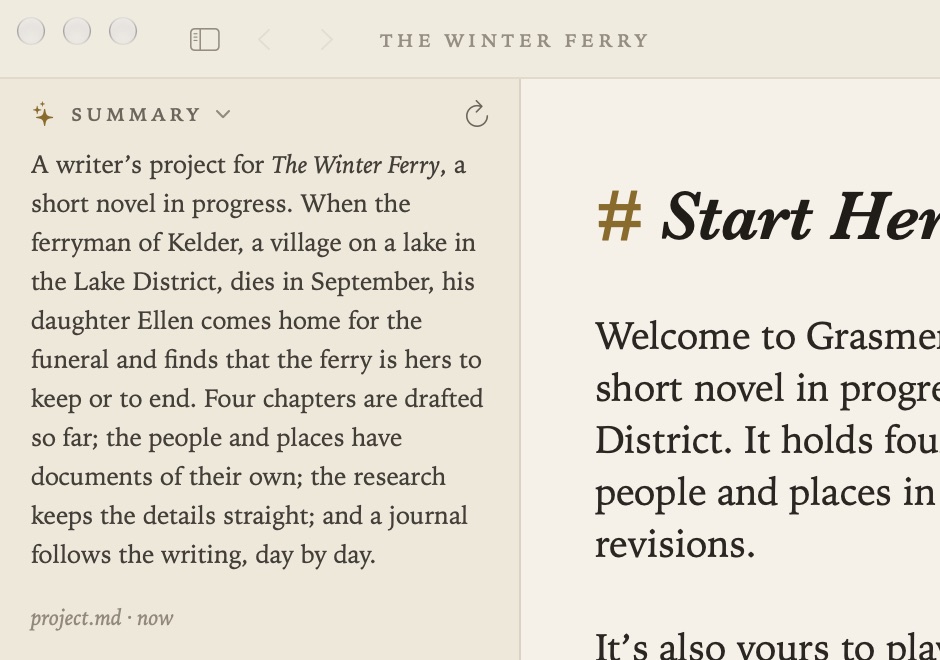
Project ▸ Generate Summary writes a short overview of the project into the Summary section of project.md, which shows at the top of the contents. The rest of project.md is left alone, and you can edit the summary like any other text.
Copy as Context (⌥⌘C)
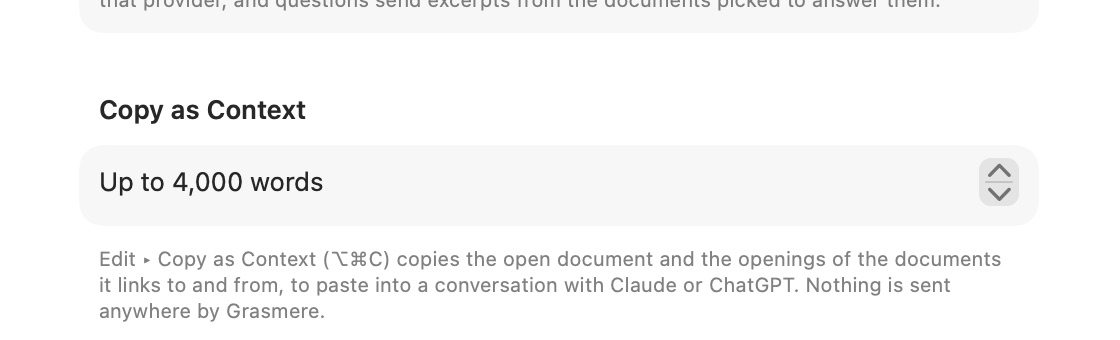
If you’d rather talk your work over with Claude, ChatGPT or another assistant yourself, choose Edit ▸ Copy as Context (⌥⌘C), or its button in the running head. It copies the open document along with the titles and openings of every document it links to and from, ready to paste into the conversation. Grasmere itself sends nothing anywhere.
Settings ▸ AI ▸ Copy as Context sets how many words it copies. The default is 4,000.
Which model answers
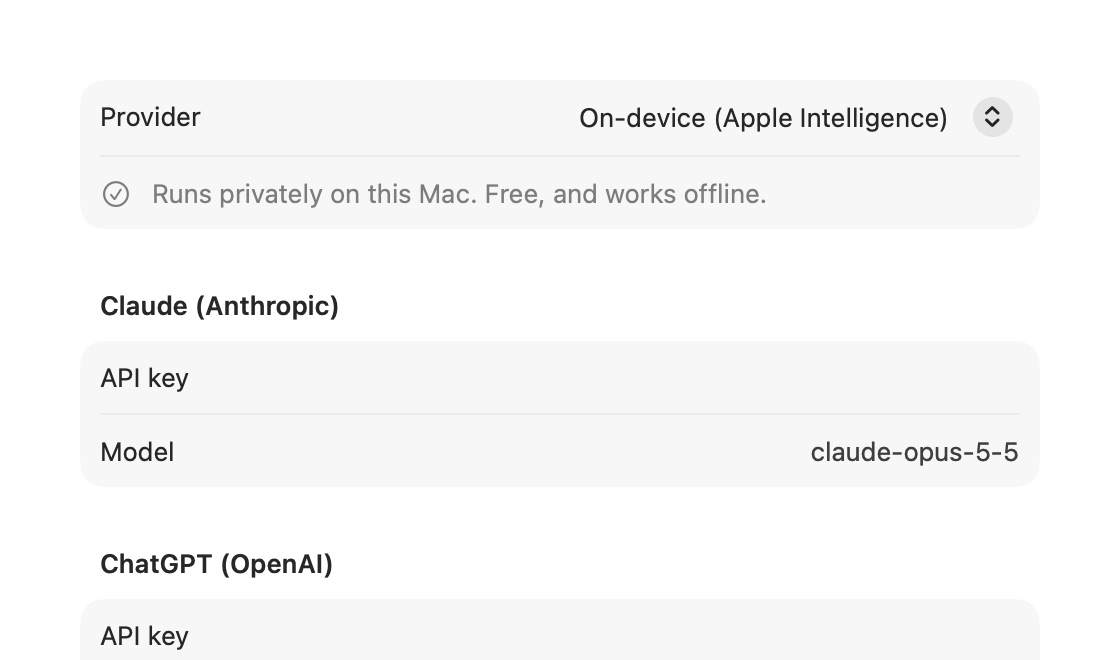
Settings ▸ AI ▸ Provider chooses the model for Ask Your Documents, Generate Summary, Brainstorm and Ask a Follow-up Question.
- On-device (Apple Intelligence) is the default. It runs privately on your Mac, costs nothing and works offline. Apple Intelligence needs to be turned on.
- Claude (Anthropic) or ChatGPT (OpenAI) use your own API key from that company, and you can choose the model too.
Your API keys are kept in your Mac’s keychain.
What is sent, and when
With the on-device model, nothing leaves your Mac.
With Claude or ChatGPT, this is what goes to that company:
- When you ask a question, your question and excerpts from the documents Grasmere picks as relevant.
- When you generate a summary, the text of the documents being summarised.
- When you brainstorm, the subject you typed.
- When you ask a follow-up question, the document’s title, the heading and the passage.
Nothing is sent until you ask, and only for that request. The Ask tab says which provider is answering. Your use is covered by your own agreement with that company. See Privacy.
Merging documents
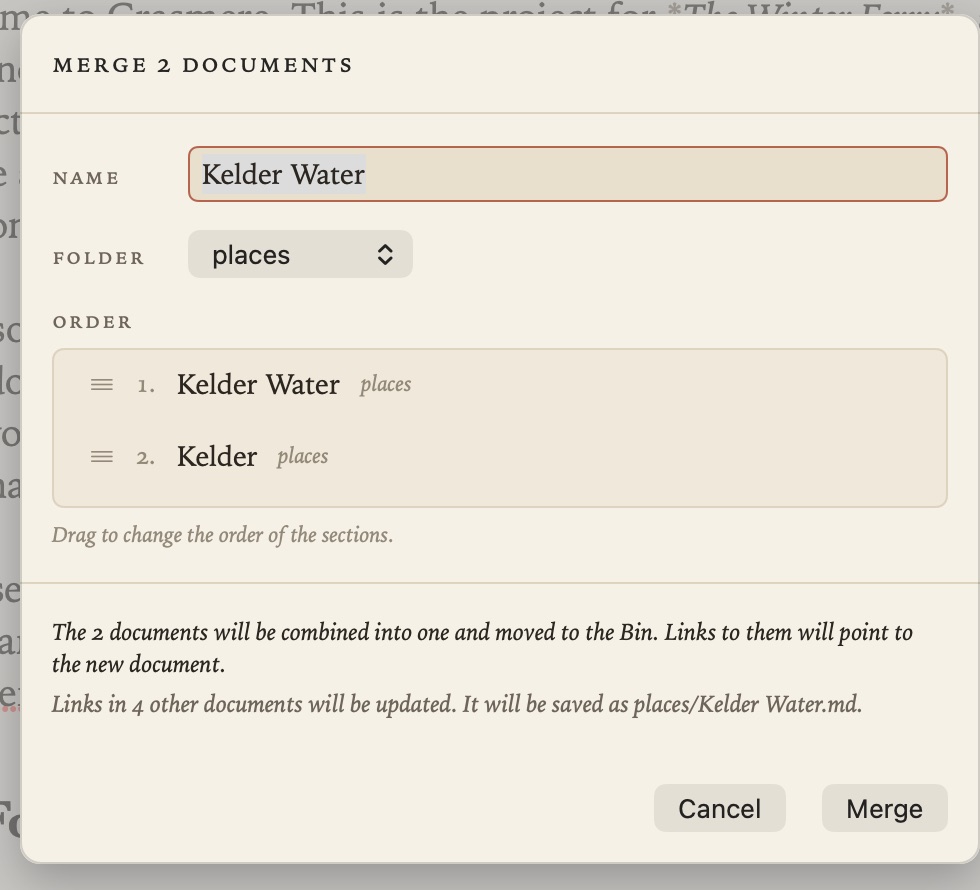
This isn’t an AI feature, but it’s another way of thinking with your documents. Pick two or more in the contents, right-click and choose Merge, and you get one document with a section for each. See The Contents.
Related
- Quick Capture and Sharing, for saving passages from AI conversations as insights